

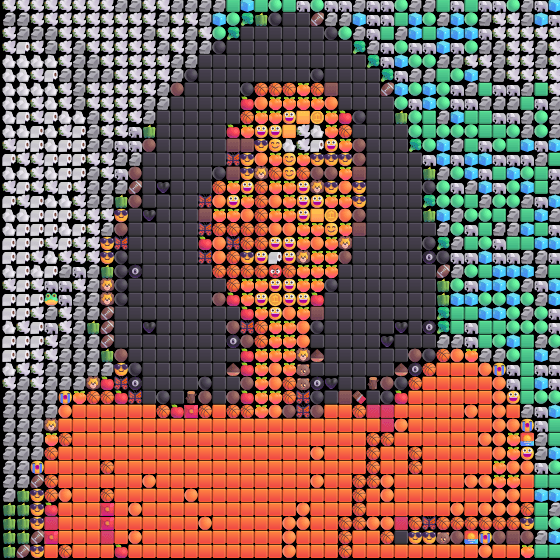
A recognizable portrait
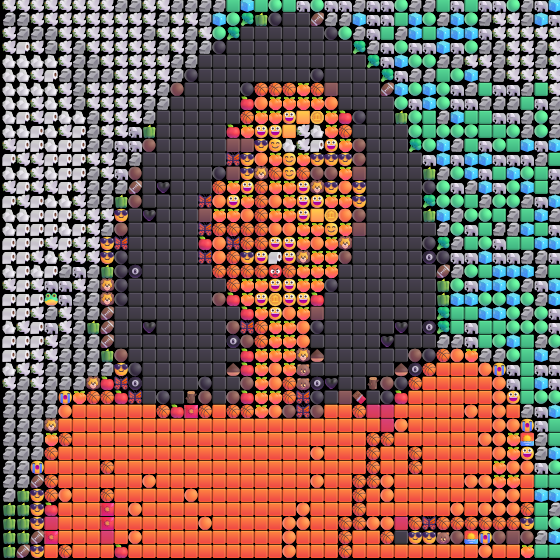
Center crop · 2.5×
Grid · Quick preview
Analysis 4 · Emoji size 14
PNG · 560 × 560Download sample
Turn photos into images made from emoji with Photo From Emoji, the best free photo to emoji tool for 2026. Adjust the detail and style, then download a PNG. No signup; your photos stay in your browser.
Sample
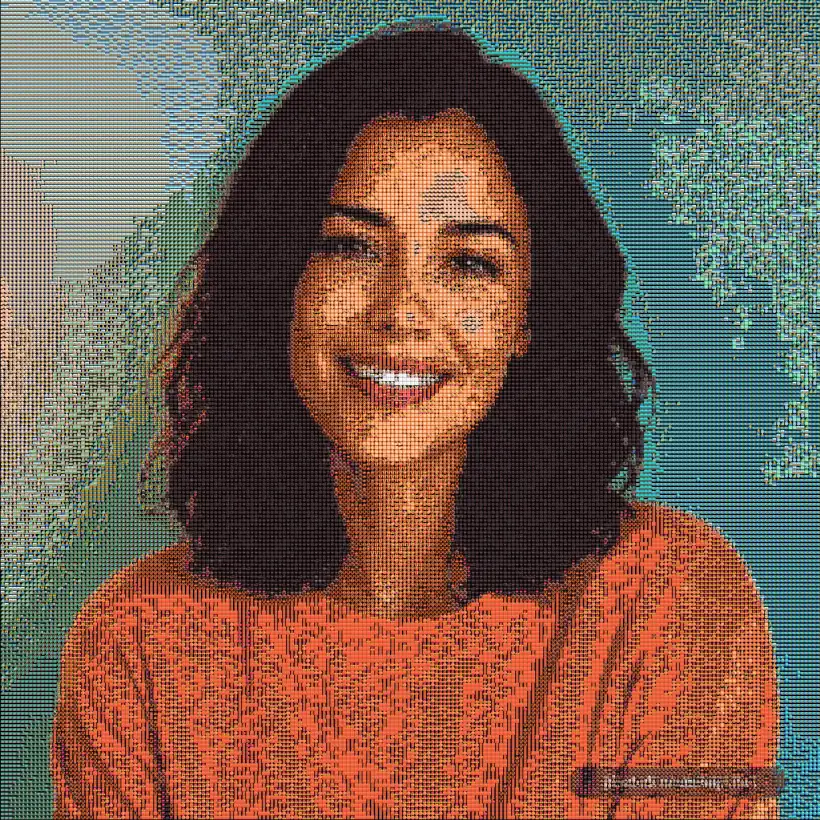
From the photo to every emoji
Center crop · 2.5×
Grid · Quick preview
Analysis 4 · Emoji size 14
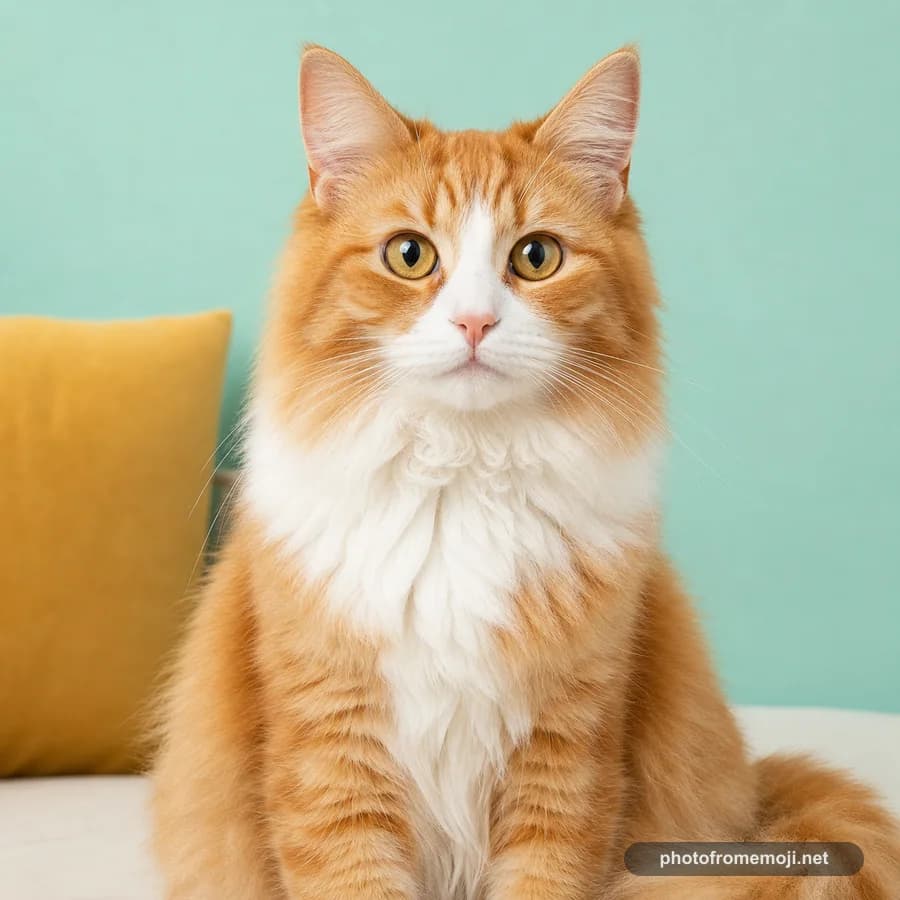
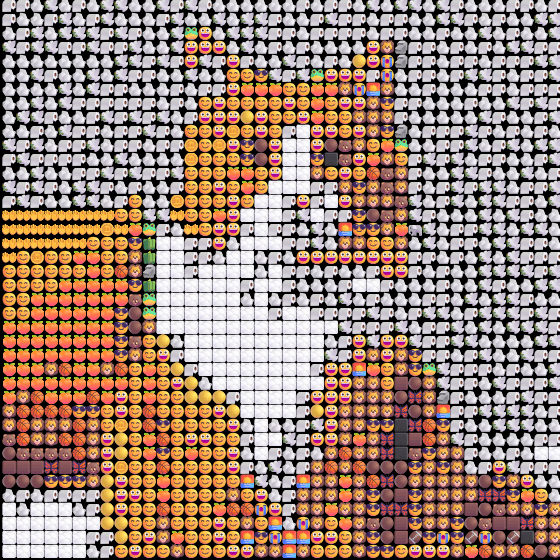
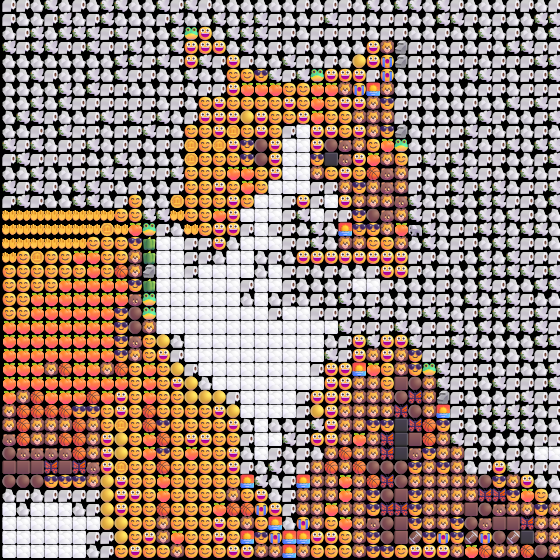
Center crop · 2.5×
Grid · Quick preview
Analysis 4 · Emoji size 14
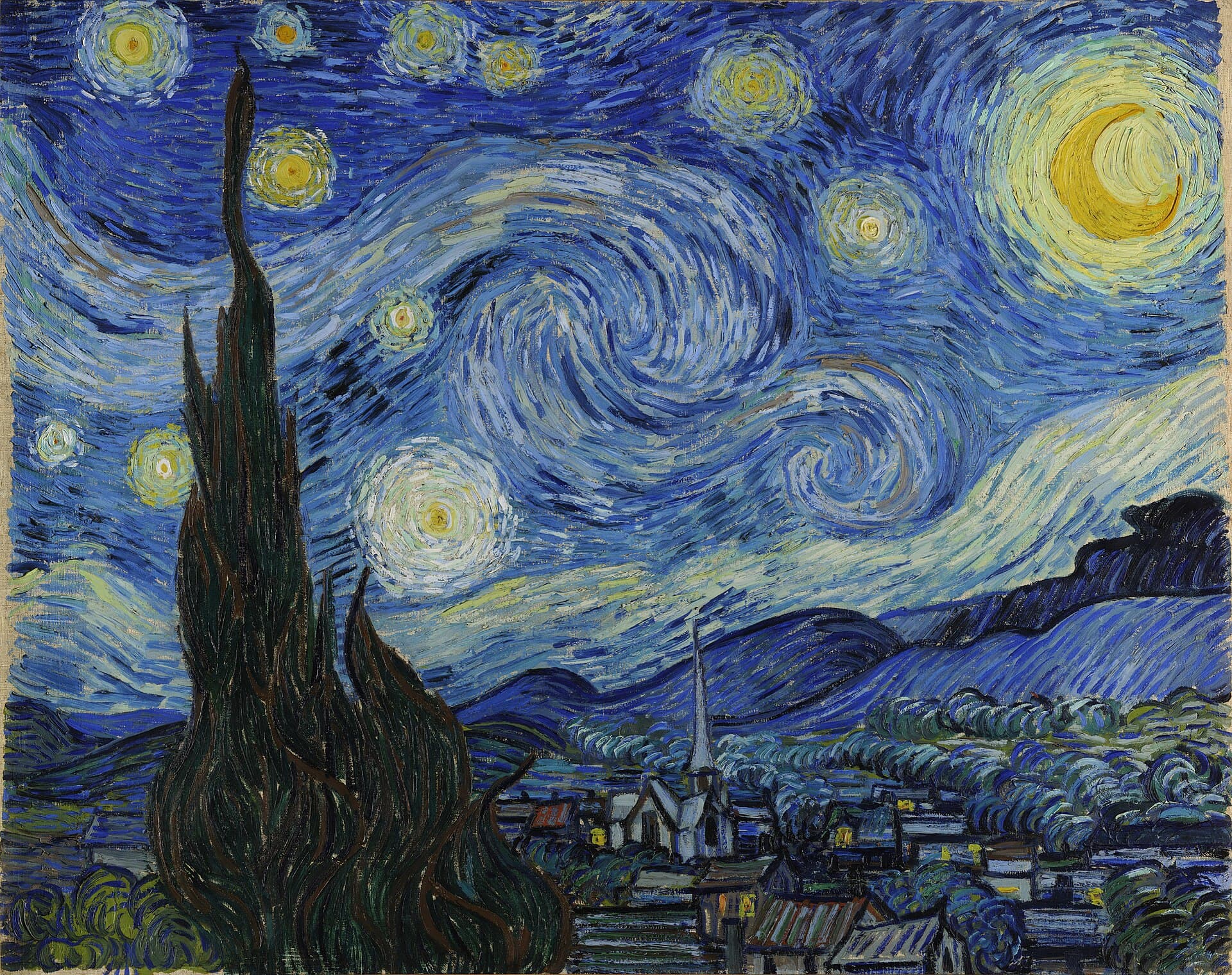
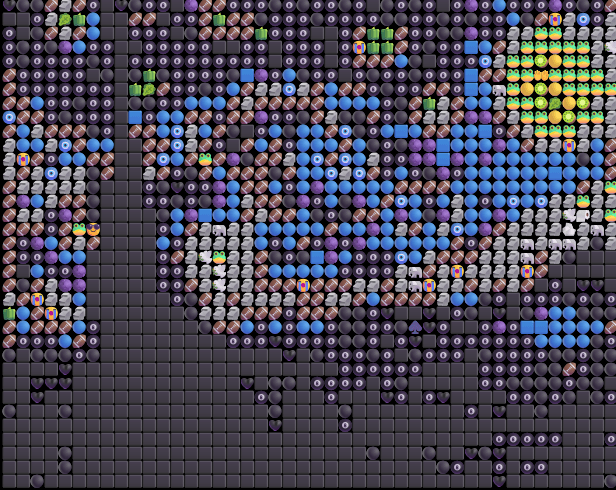
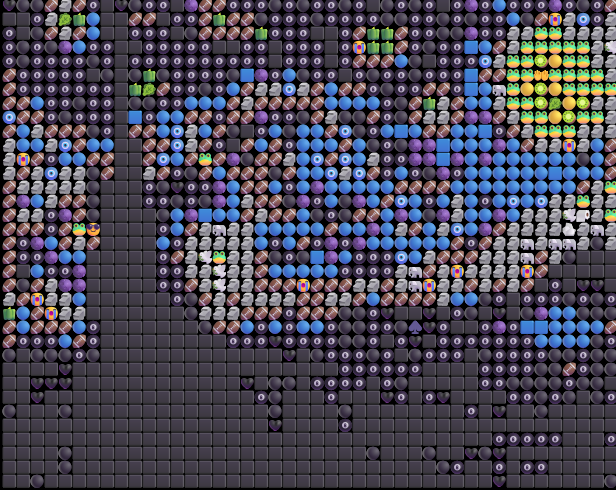
Center crop · 2.5×
Grid · Quick preview
Analysis 4 · Emoji size 14
Portrait and cat originals are AI demonstration images; mosaics are actual tool outputs. Painting: The Starry Night by Vincent van Gogh. Sources and reproduction steps
Choose a clear subject first. These four photo types usually keep their shape after Photo From Emoji turns them into an emoji image.
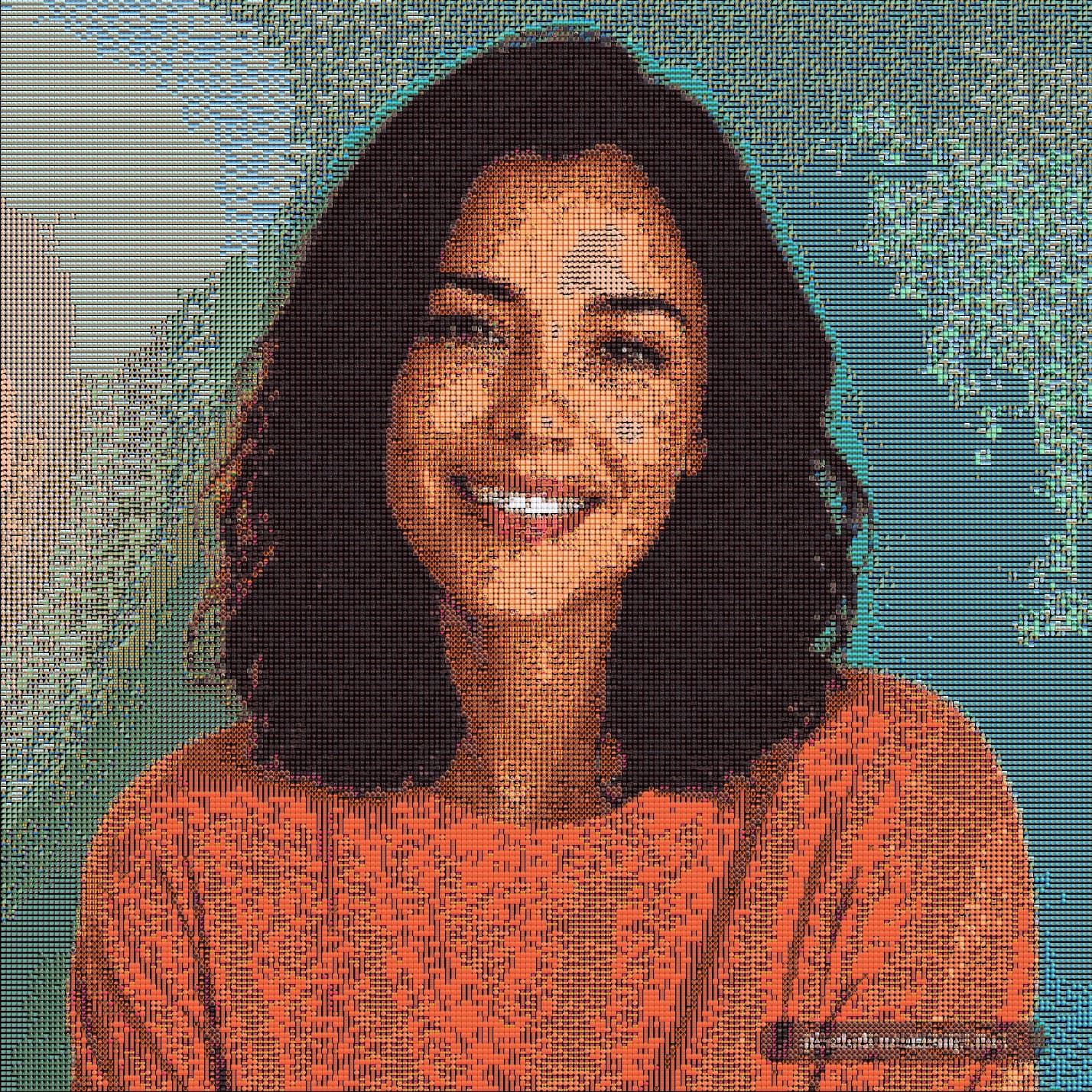
Clear face, simple background
Portraits are the safest first test because faces give you a quick read on whether the emoji image still looks recognizable.
Best when
Use one close face with bright, even light and little background detail.
Start with
Start with Grid. If the face is unclear, crop closer before uploading or try a smaller Analysis Window.
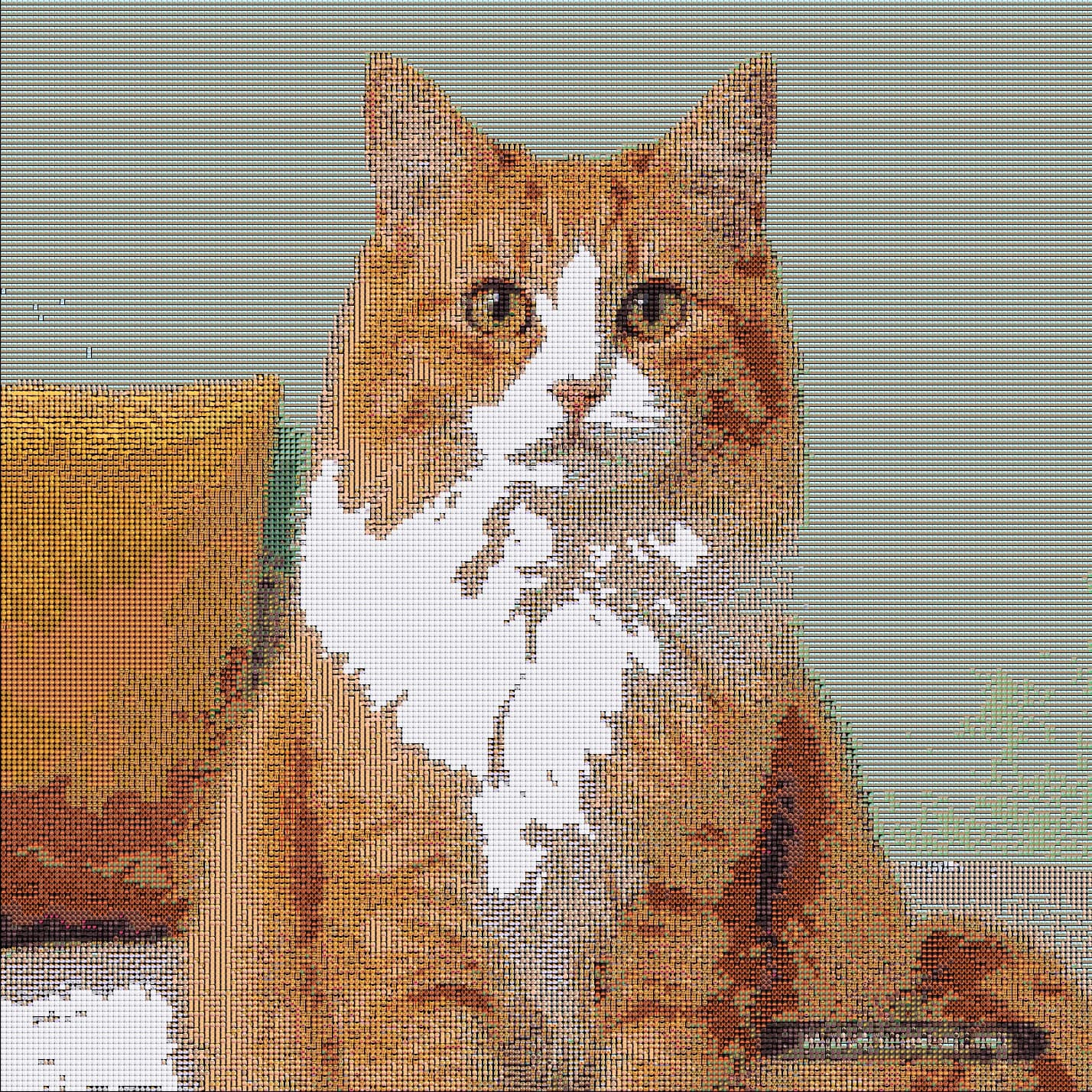
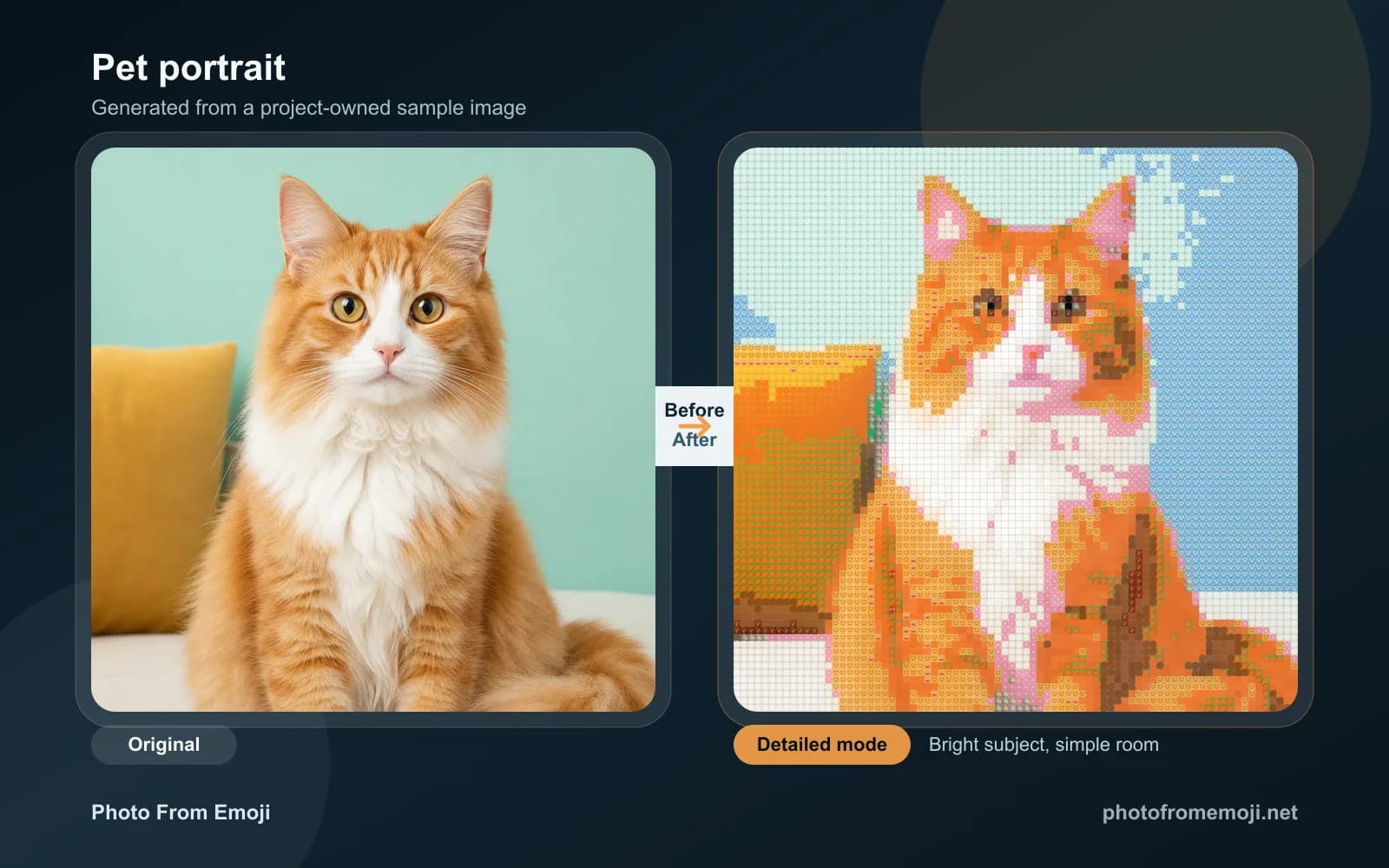
Clear eyes, bright fur, calm room
Pet photos work well when the eyes, fur color, and silhouette stay separated from the background.
Best when
Choose a pet photo where the eyes and main body are not hidden by shadows.
Start with
Start with Grid and a photo with clear eyes. Compare the result before changing the sampling.
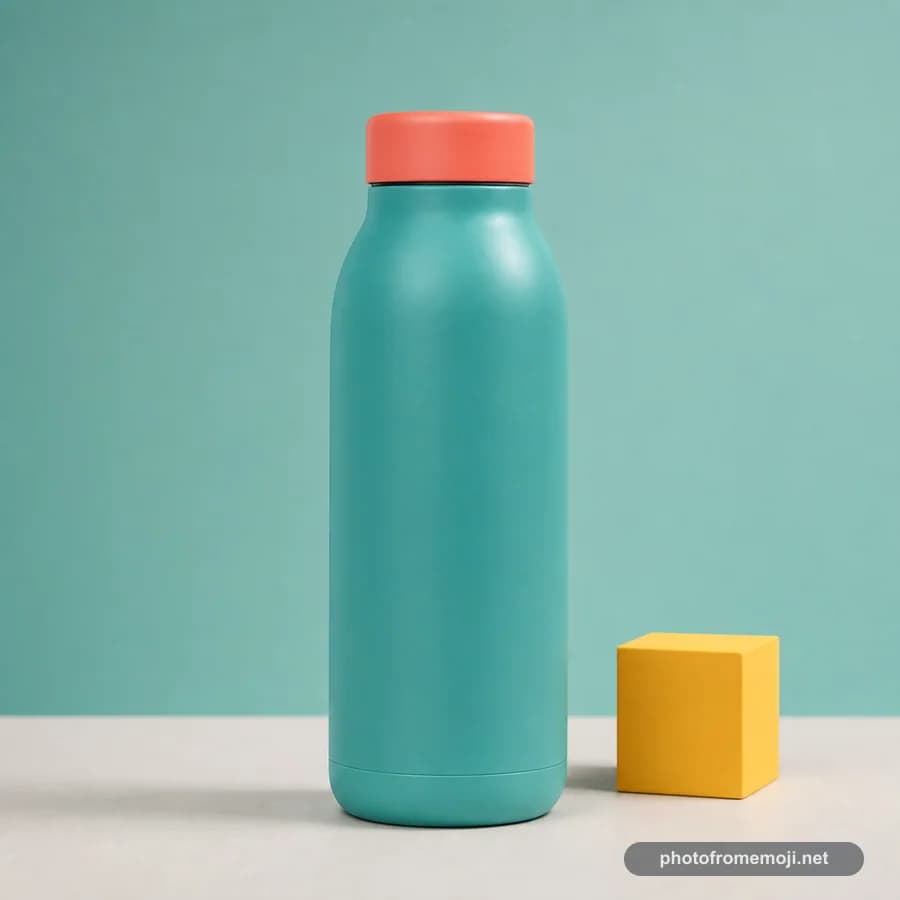
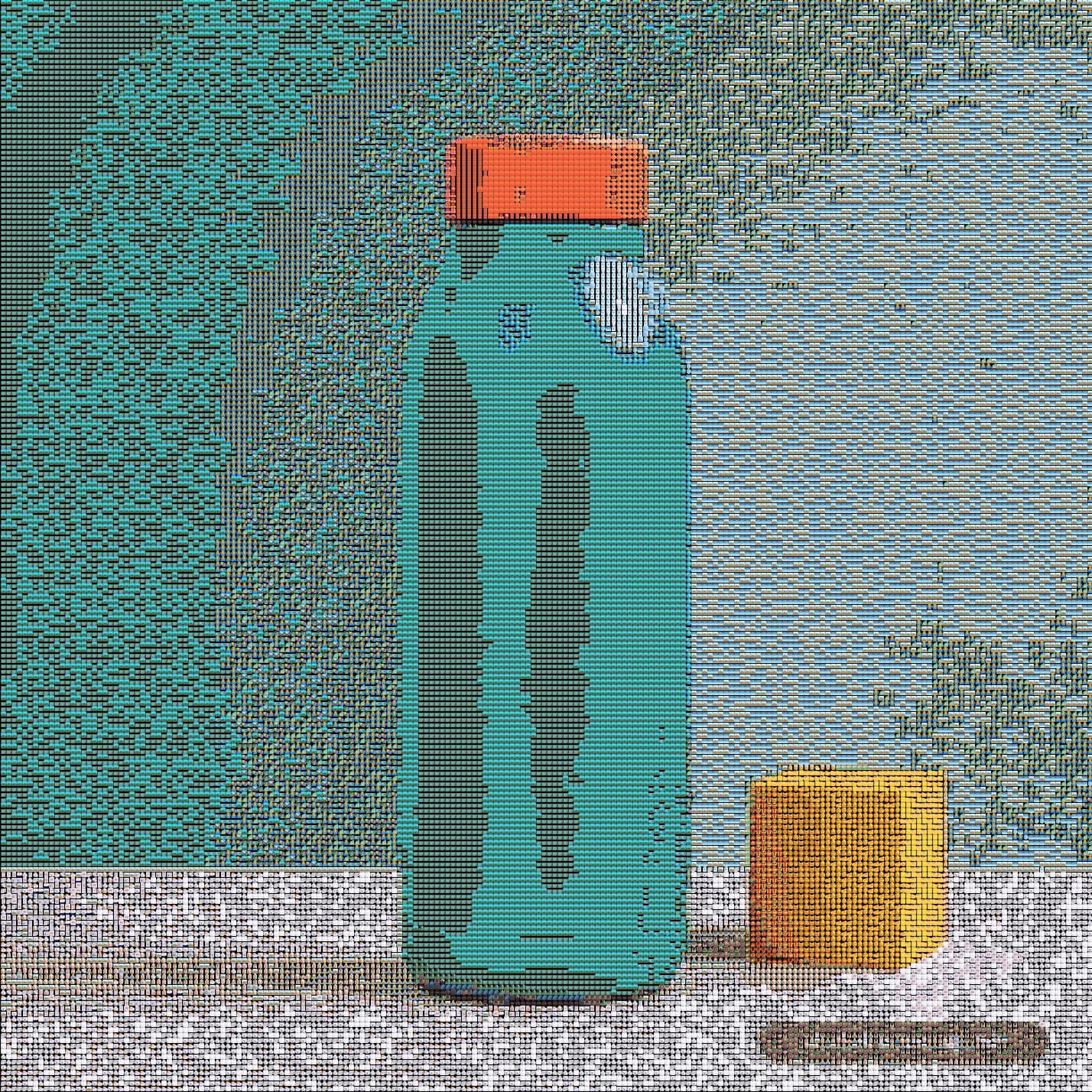
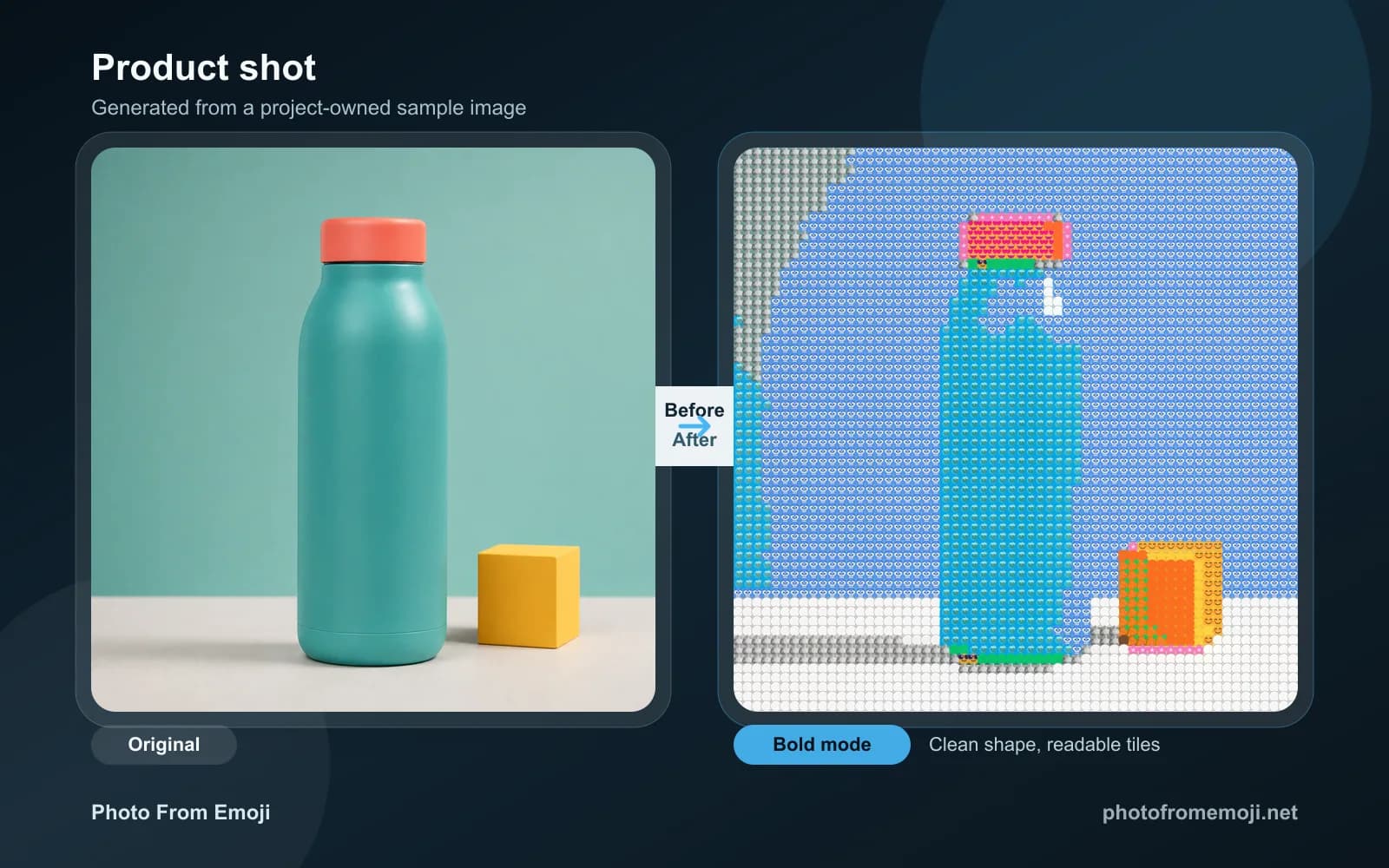
Simple outline, strong color blocks
Product images are useful for checking how well Photo From Emoji keeps object edges and brand-like color areas.
Best when
Use one object on a clean surface, with enough contrast around the edge.
Start with
Use Grid for readable edges. Switch to Chart if you want stronger color blocks.
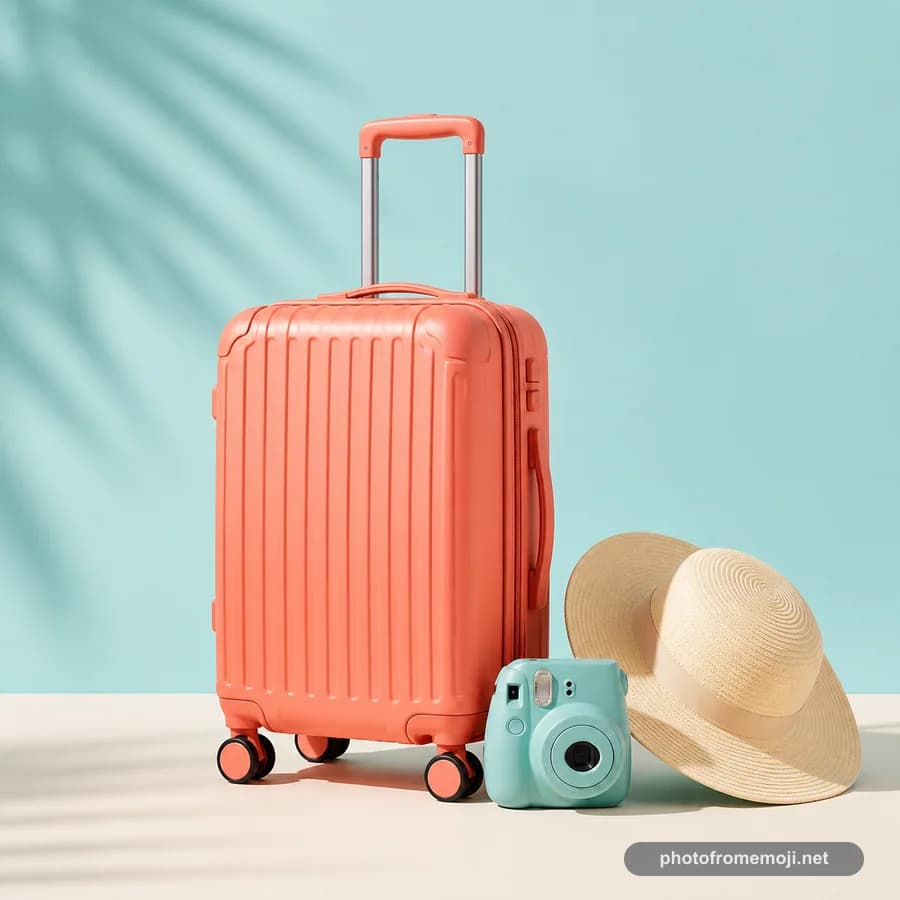
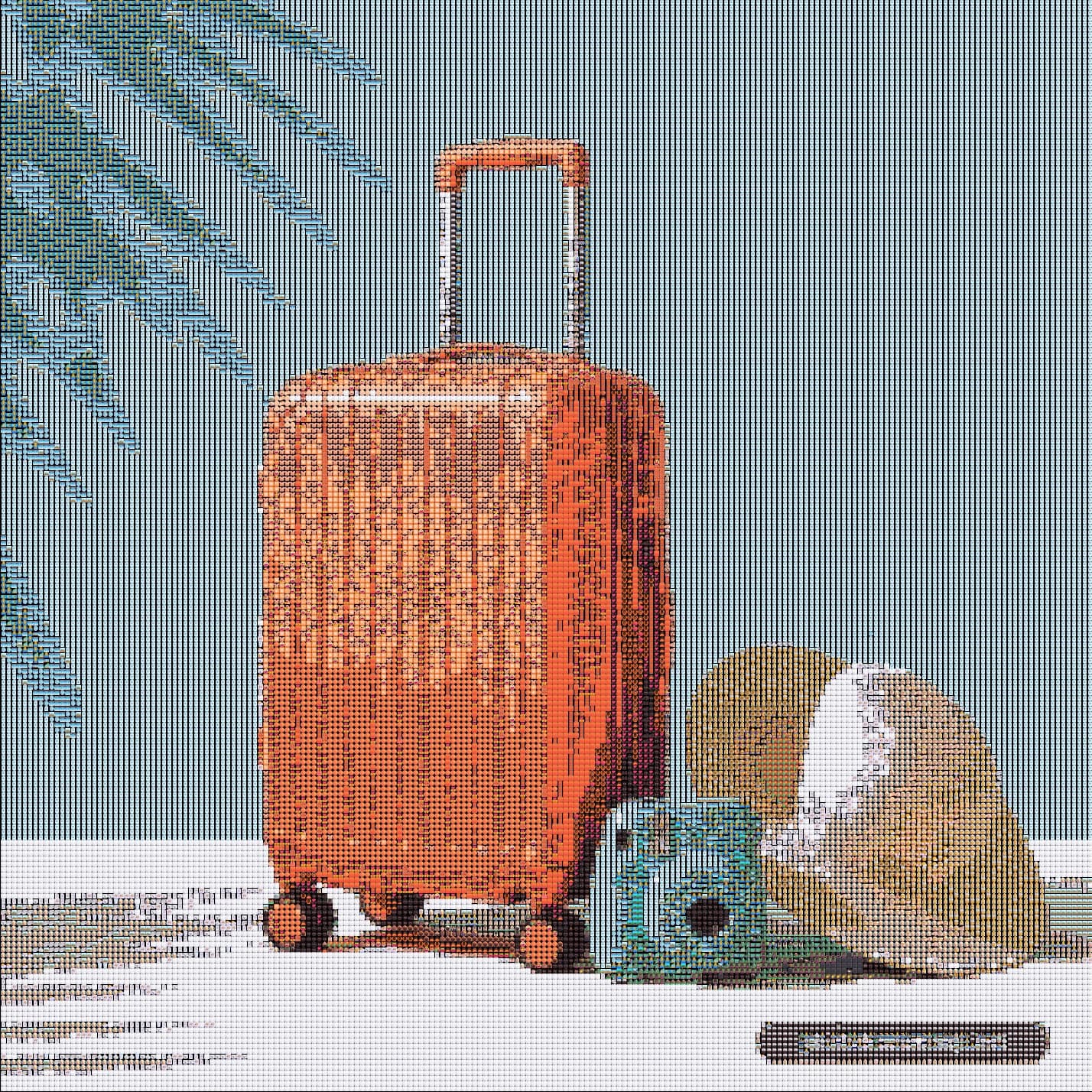
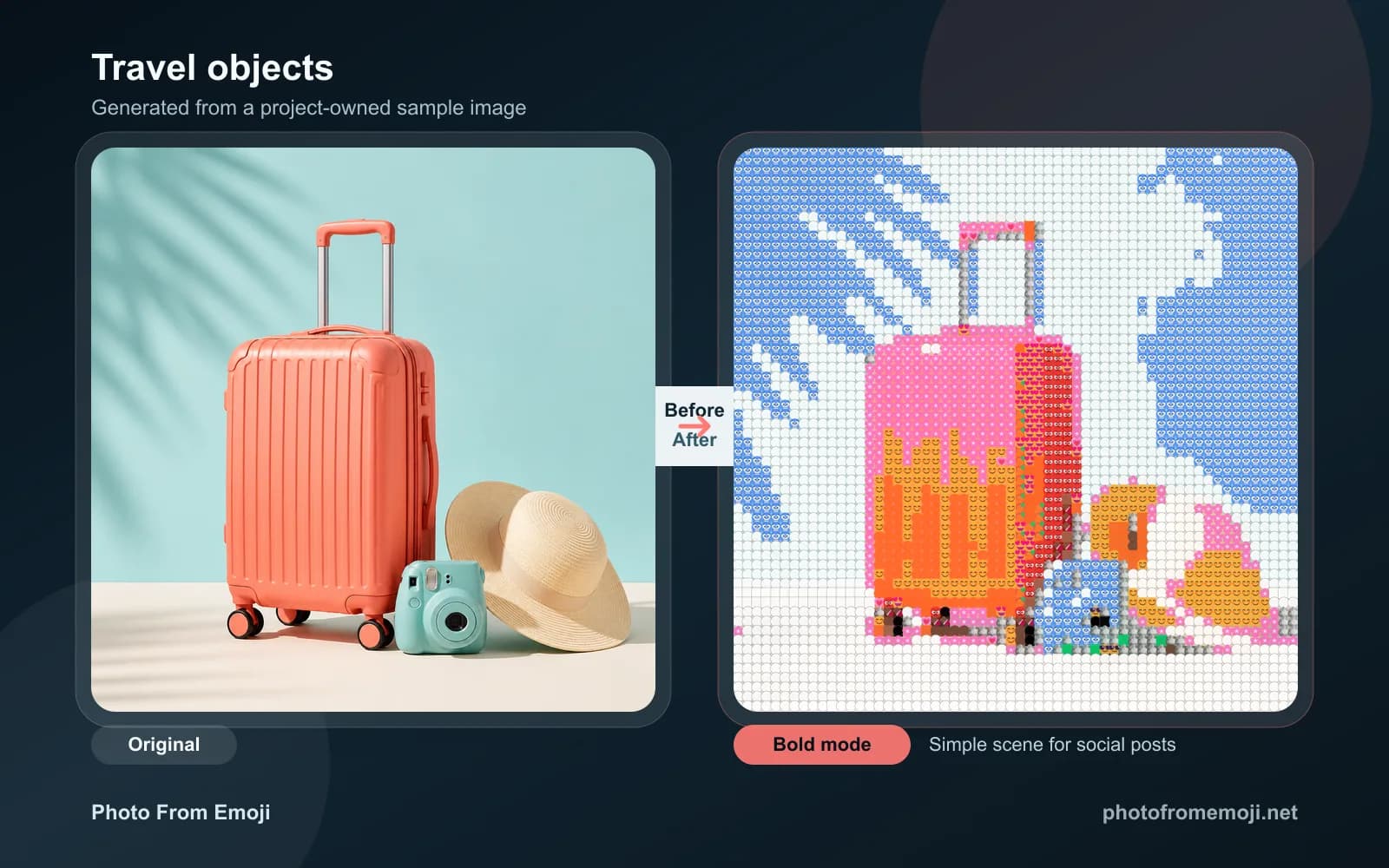
Recognizable object, light background
Simple object scenes create playful results for social posts, avatars, and mood boards without losing the main subject.
Best when
Pick a scene with a few clear objects instead of a busy landscape.
Start with
Use Chart for punchier tiles, or Grid if the object shape matters more.
If your first result is hard to read, choose a photo with one subject, stronger light, and less background detail.
Result gallery
After choosing a photo type, scan finished Photo From Emoji results for subject recognition, clean edges, color separation, and visible composition.
A close portrait is the fastest way to judge whether the emoji grid keeps recognition.
Inspect
Eyes, face shape, hair edge
Best for
Avatars and first tests
One object on a quiet background shows whether edges and large color blocks hold up.
Bottle edge, background space, main color blocks
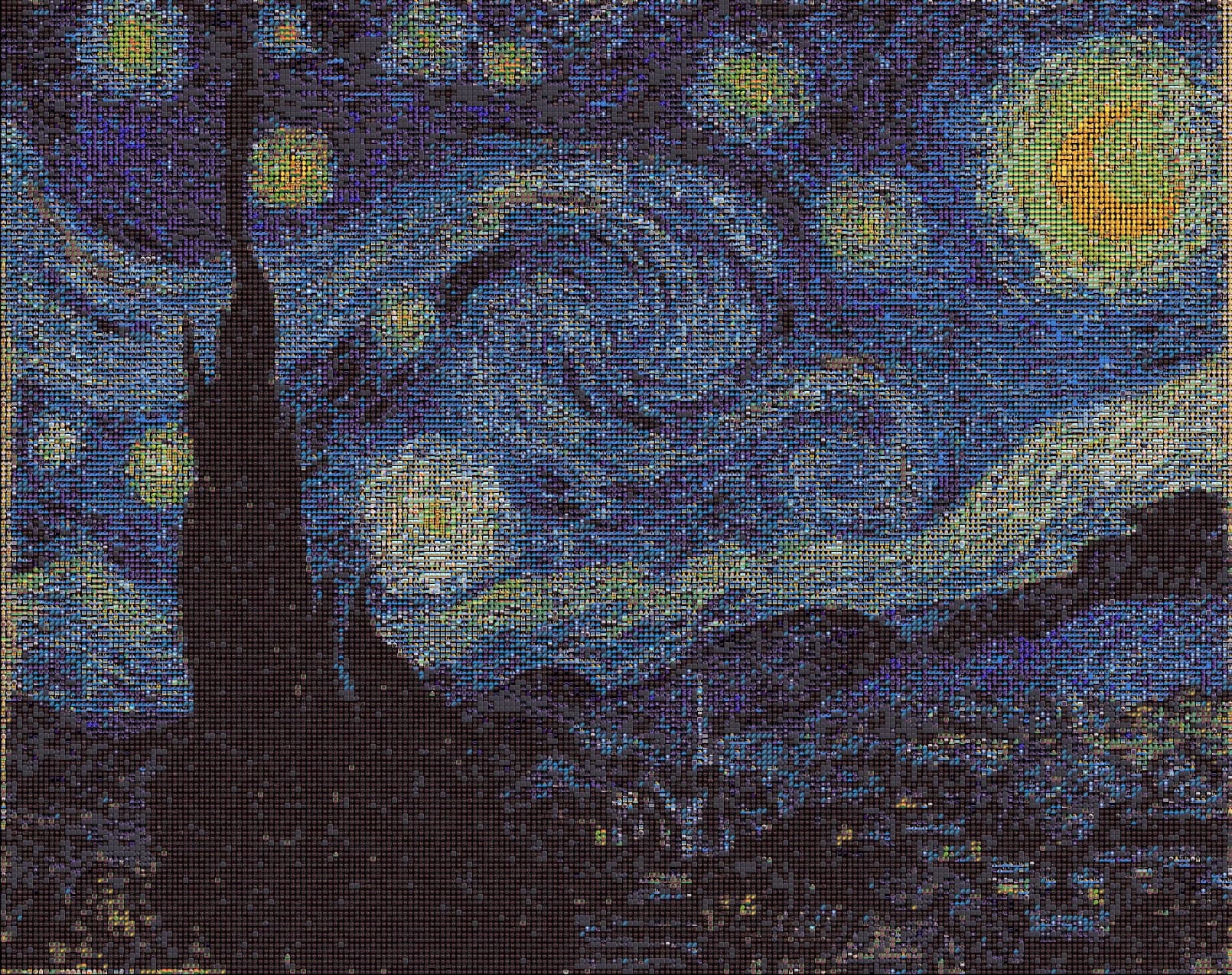
Strong blue and yellow layers make it easier to compare color, brightness, and texture.
Sky swirls, horizon line, bright color blocks
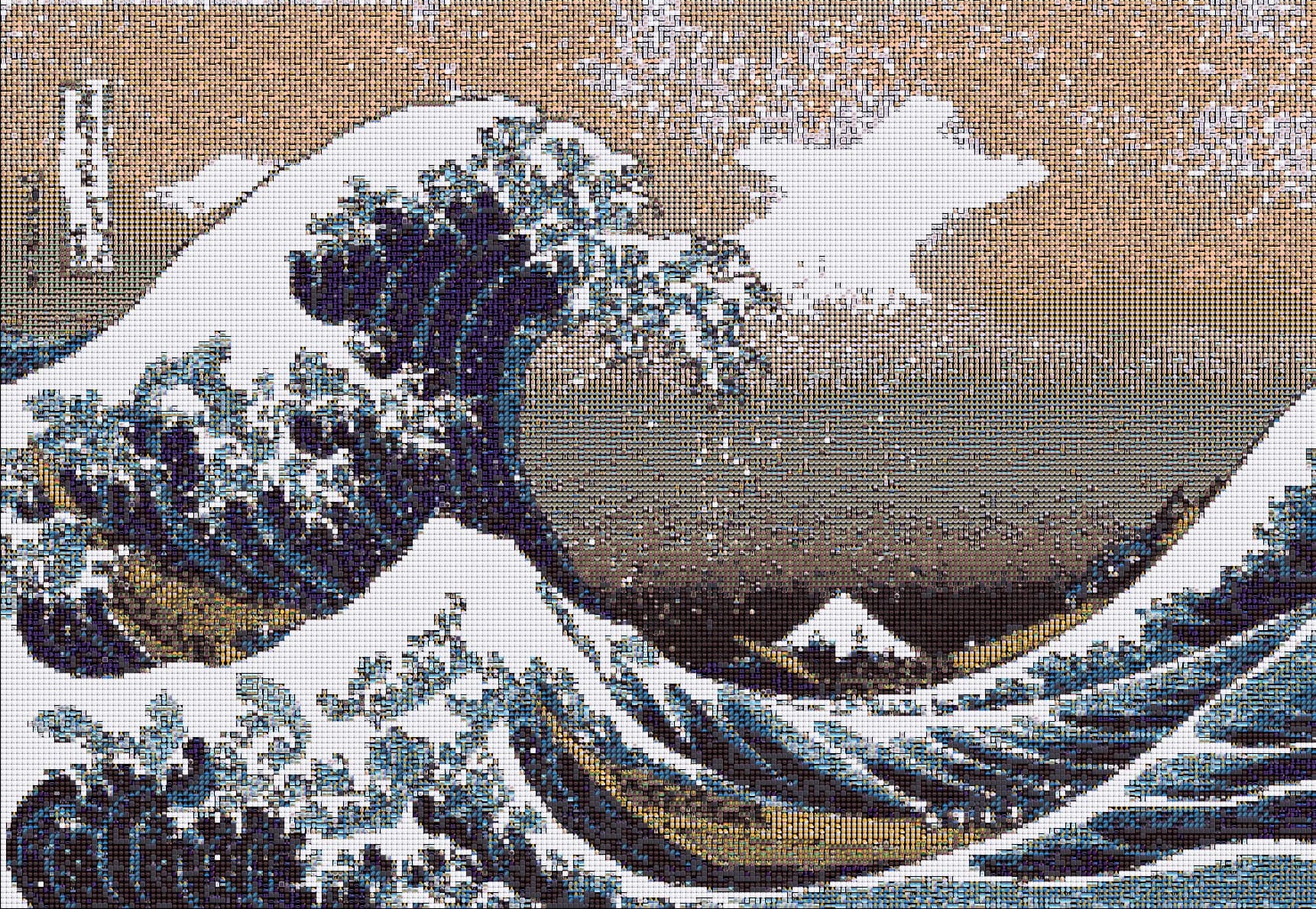
A directional image with strong lines makes the overall composition easier to judge.
Wave direction, white foam, blue layers
When the image is small on a phone, the main subject should still be easy to recognize.
Faces and objects work better when the edge is clearly separated from the background.
Clear light, dark, and main color areas help the emoji result stay cleaner.
Look at the image from a distance to recognize the subject, then zoom in to see the individual emoji.
Core capabilities
Upload a photo, adjust the result, and save it as a PNG for your avatar or next post.
The current version renders with browser canvas, so the source image does not need to be uploaded.
Adjust the sampling to change image detail, and the output emoji size to change the export dimensions.
Review the full result, then use Before/After to confirm whether the subject kept its shape.
Download the generated PNG for avatars, social posts, and quick creative work.
Use a clear subject, a common format, and the right mode so the first result stays readable.
Keep it under 10MB.
No source upload needed.
Pick structure, texture, or stronger color blocks.
Start with a clear photo and the default settings. If details are missing, try a smaller Analysis Window.
Famous painting results
Classic artworks have clear composition, color, and subjects, so they quickly show whether Photo From Emoji keeps the image readable.
Stable artwork structure makes it easy to see whether the emoji grid preserves the main composition.
Blue, yellow, skin tones, and shadows reveal whether the Grid result turns muddy or stays controlled.
Use public-domain or open-access artwork to learn the effect, then return to the tool with your own portrait, pet, or product shot.
Vincent van Gogh
Strong blue and yellow contrast keeps the swirls, sky, and skyline readable.
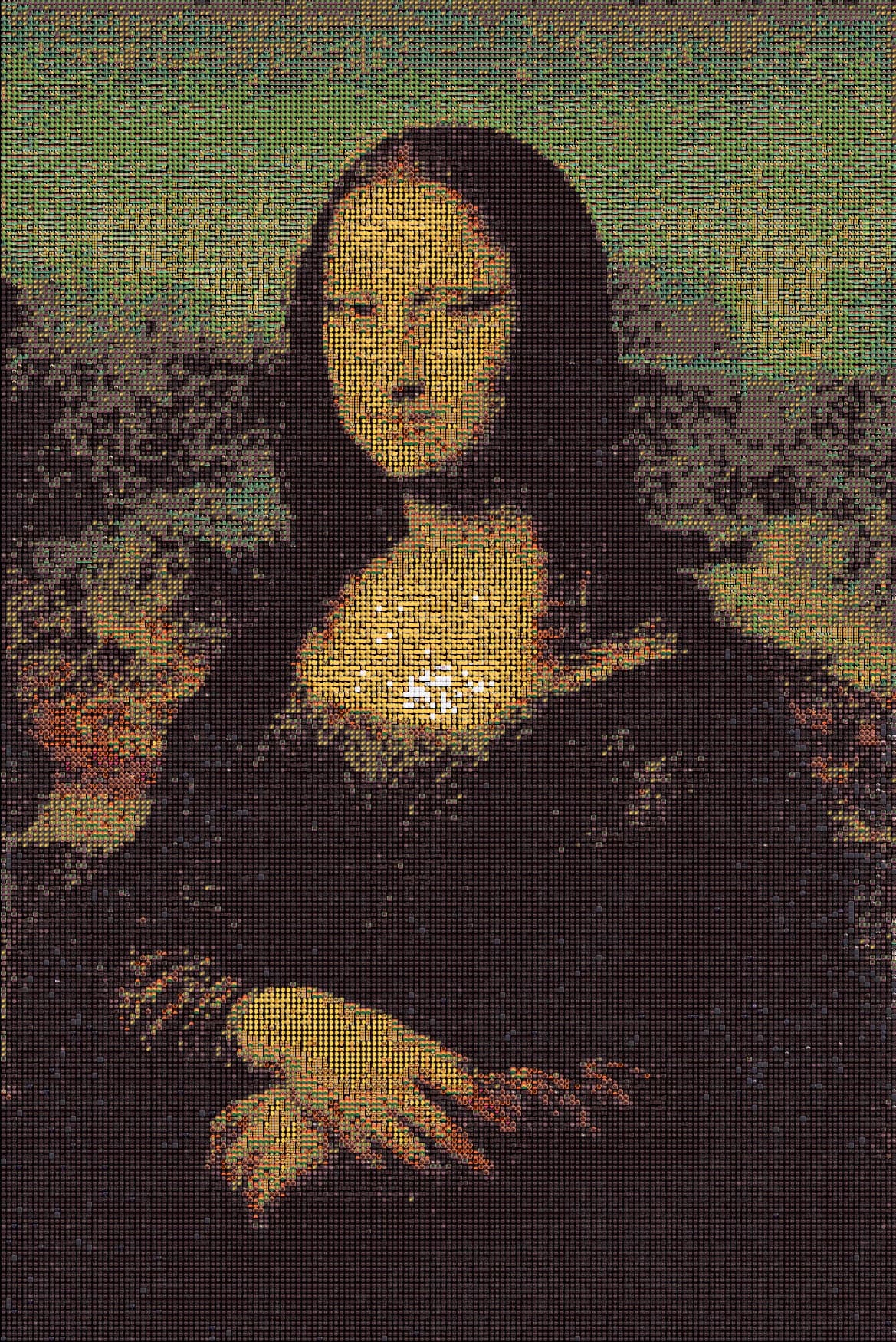
Leonardo da Vinci
A classic portrait where the face, hands, and dark silhouette remain recognizable.
Katsushika Hokusai
A graphic wave composition with layered blues, high contrast, and crisp emoji texture.
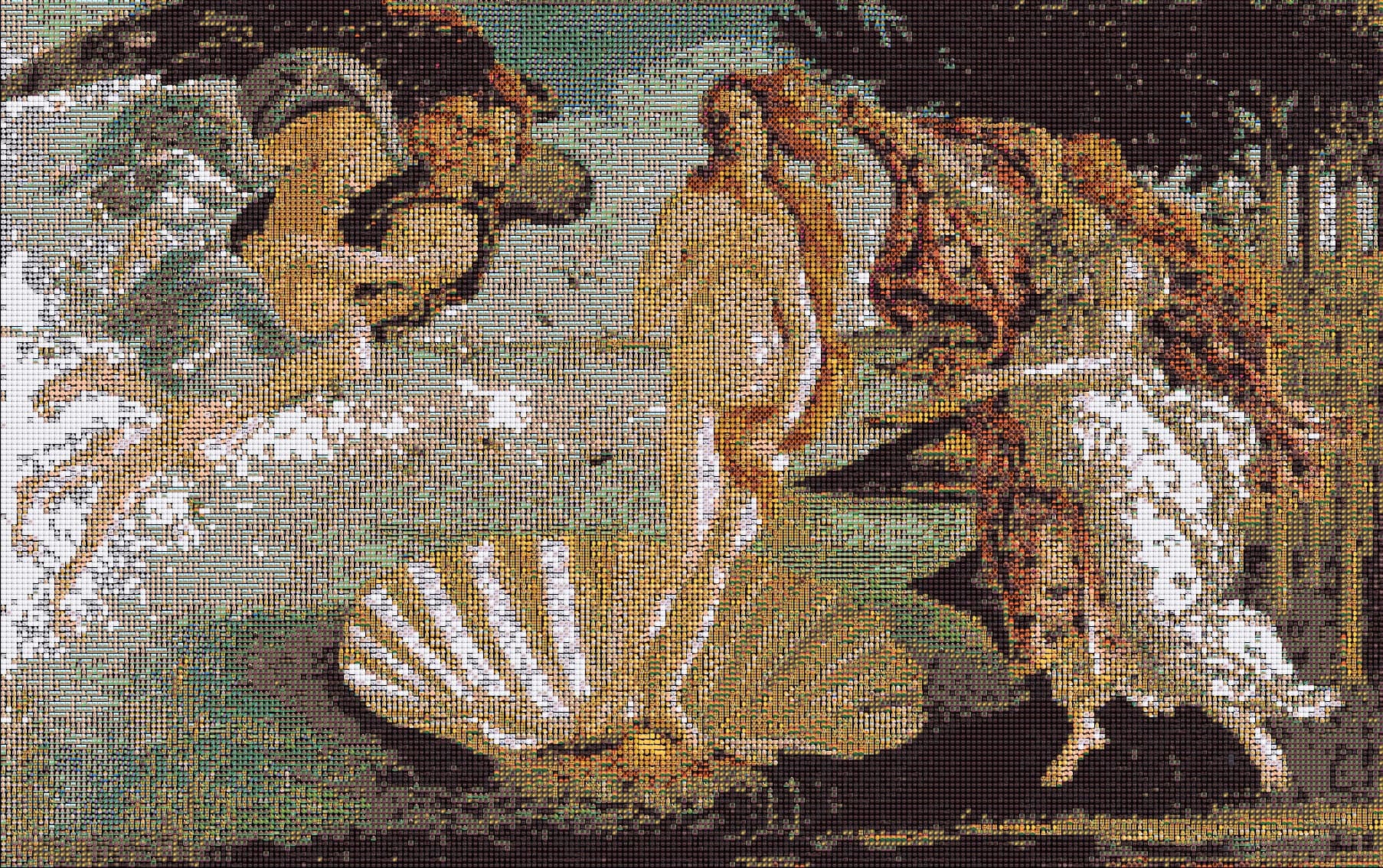
Sandro Botticelli
A wide soft-color figure scene that keeps pale skin tones and the main composition visible.
These artworks come from public-domain or open-access sources. They demonstrate different conversion patterns, but your own portrait, pet, or product image can work just as well.
Every setting explained
Use four core settings to control recognition and texture, then use four finishing settings for backgrounds, gaps, and dark areas.
Controls the size of sampled blocks. Smaller blocks can retain more detail, within processing limits.
Changes the size of the drawn emoji and exported PNG, without adding sampled detail.
Sets the starting range for color matching. If no match is found, the tool widens the range.
Grid keeps structure, Texture softens, Chart strengthens color blocks.
Emoji Fill Color
Mid gray is stable. Match the background for a flatter finish.
Allowed Empty Space
Start at 54%. Lower values exclude more emoji and may leave mostly square tiles.
Background Color
A color close to the photo usually feels cleanest.
Hide Black / Transparent
Compare before downloading: dark parts of the subject may also disappear.
If the subject is unclear, crop closer before uploading or try a smaller Analysis Window.
Generate once with defaults, then change only one setting at a time. That makes the result easier to judge.
Under the hood
Photo From Emoji scans the source image, then chooses emoji by color and fill. Once you see that, clear subjects make sense.
The image is cut into small blocks. Each block gets one color decision.
The tool reads dominant color and brightness so the broad light structure stays intact.
Each emoji is measured for color and empty space, then the closest match is chosen.
Chosen emoji are drawn at your output size and rebuilt as a downloadable PNG.
Clear shapes and distinct colors give the tool more information to work with. Tiny text and crowded backgrounds may lose detail.
Color samples
Each block becomes a dominant color before it enters emoji matching.
Scanned tiles
1,600+
Match basis
Color + gaps
Output
PNG
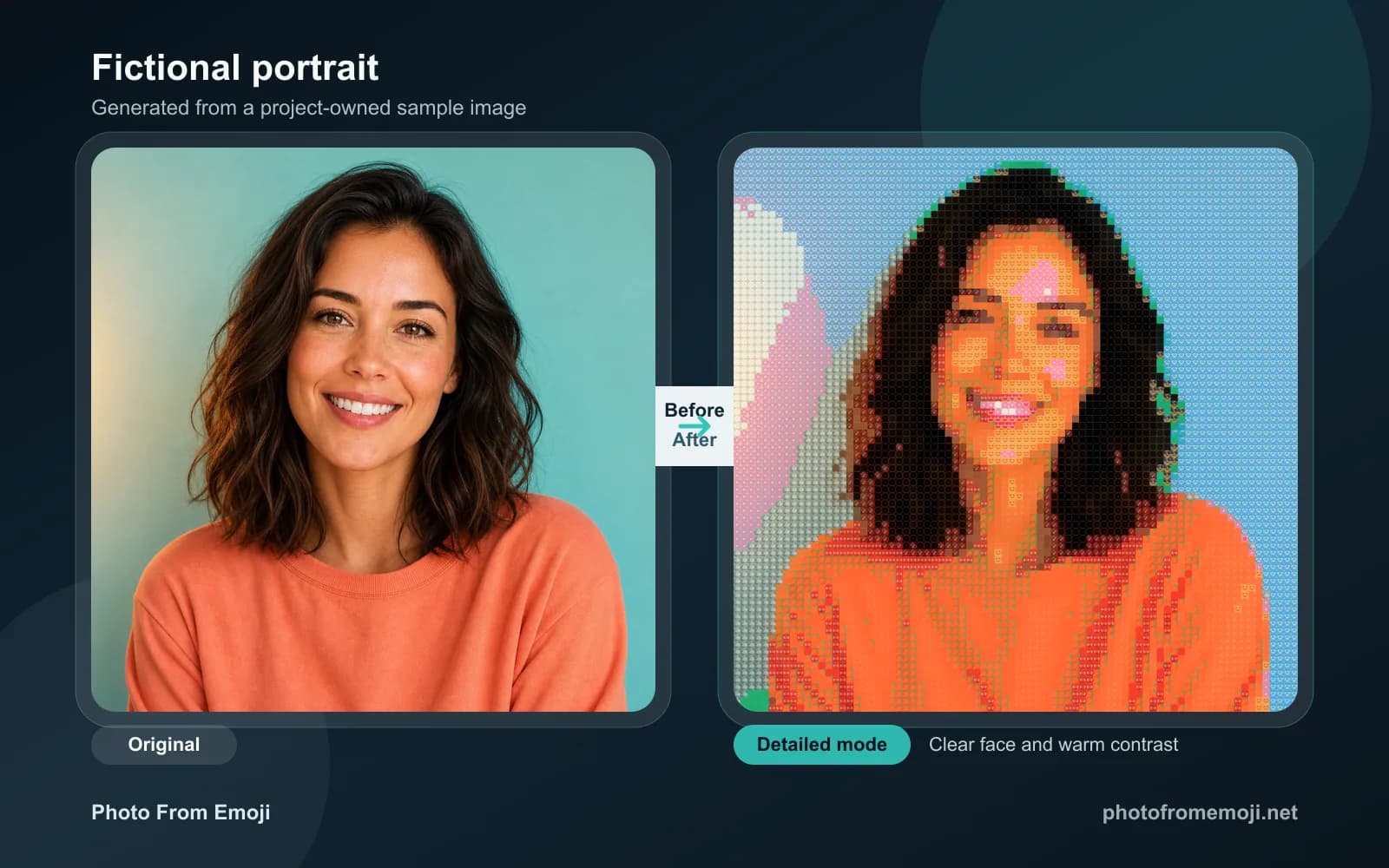
Clear face, warm contrast
Use cases
The same photo can become a profile image, a post asset, or a classroom demo. Start with the job, then tune the output.
Use bold subjects and clean backgrounds when the image needs to read fast in a feed.
Choose faces, pets, or clear silhouettes when the result has to stay recognizable at small sizes.
Show how a picture becomes blocks, color samples, and a rebuilt image.
Meme makers
Turn one familiar image into a quick visual joke.
Designers
Make playful thumbnails, stickers, and campaign details.
Just for fun
Save pets, selfies, and trip photos as emoji keepsakes.
For the first test, pick one photo with a clear subject and two or three strong color areas.
Private by design
Images are processed in your browser and never uploaded.
No watermark
Downloads are clean and ready to share or print.
Fully adjustable
Control detail, colour accuracy, layout and background.
Why this tool
Create and download your image for free, without an account.
No subscriptions, credits or hidden upgrades.
Images are processed in your browser and never uploaded.
Downloads are clean and ready to share or print.
Open the page and start creating immediately.
Runs on phones, tablets and desktops in any modern browser.
Control detail, colour accuracy, layout and background.
Privacy by design
Photo From Emoji converts the image on your device, so the upload step you worry about does not happen.
The browser reads the pixels and builds the emoji image on your device.
We do not send the original file or finished image to a remote conversion service.
The working image lives in the current page session, not in an account library.
Your image is read by the browser.
No account or cloud library is required.
Read how we handle website data in our Privacy Policy.
Best results
Choose a bright photo with a clear subject and a simple background for an easier first attempt.
A single face, pet, product, or object gives the emoji result one shape to preserve.
Bright edges and visible color changes give the emoji matcher more useful information.
Portraits, pets, products, and travel objects are good first choices for clear Photo From Emoji results.
Busy patterns compete with the subject and make the output harder to read.
Tiny faces and overlapping objects turn into noise faster than one clear subject.
Use Grid when recognition matters most, especially portraits and pets.
Use Texture for a softer emoji look, or Chart when stronger color blocks make the result clearer.
How it works
Upload, tune, compare, and download on this page without redirects or signup.
Choose JPG, PNG, or WebP. Photo From Emoji shows the preview before generation so you can confirm the subject.
Adjust the sampling, emoji size, colors, and display mode while checking the preview.
View the whole result, then compare it with the original to check the subject and colors.
Export a clean PNG when the balance between recognition and emoji texture feels right.
Sampling affects image detail. Output emoji size changes the size of the exported image.
The art form
Emoji art belongs to a long tradition of pixel art and small-tile image making, where a larger picture emerges from many simple units. Photo From Emoji uses the colourful symbols we send every day.
The effect plays on how our eyes blend small patches of colour at a distance into a smooth image, while up close the artwork dissolves into a delightful field of tiny faces, objects and symbols. It is creative, nostalgic and unmistakably modern at the same time.
Whether you're recreating a masterpiece or turning a selfie into a conversation starter, emoji art connects familiar photo editing with the visual language of digital communication.
Before uploading
A short decision checklist for privacy, formats, display style, mobile use, and PNG export.
Photo From Emoji runs in the browser and does not need a server upload to create the emoji result.
Use files under 10MB for smoother browser performance.
Choose a photo from your phone, adjust the result, and download it in your browser.
Choose a portrait, pet photo, or favorite object. Adjust the result and download your emoji image.