
Pet Photo to Emoji: Make a Cat or Dog Portrait
Turn a pet photo into an emoji mosaic. Start with the cat example, adjust fur and eye detail, and download a PNG. Your photo stays in your browser.
Last updated: 2026-09-11
Sample
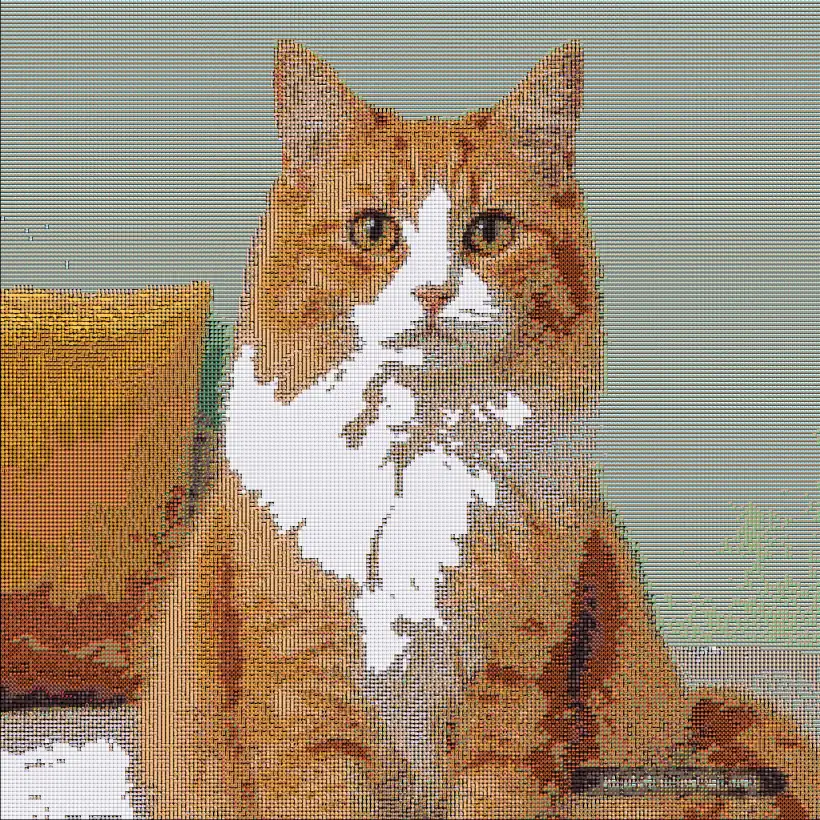
Keep the eyes and ears in the picture
Pick a close-up with open eyes, a clear muzzle, and the full outline of the ears. A plain background helps separate fur from the surroundings. If a pet is small in a large garden or room, crop the photo in your own editor before uploading it above.
Avoid cropping so tightly that an ear or the chin is cut off. For a circular profile picture, leave a little space around the face. This tool uses the crop you upload; it does not automatically detect a pet or remove the background.
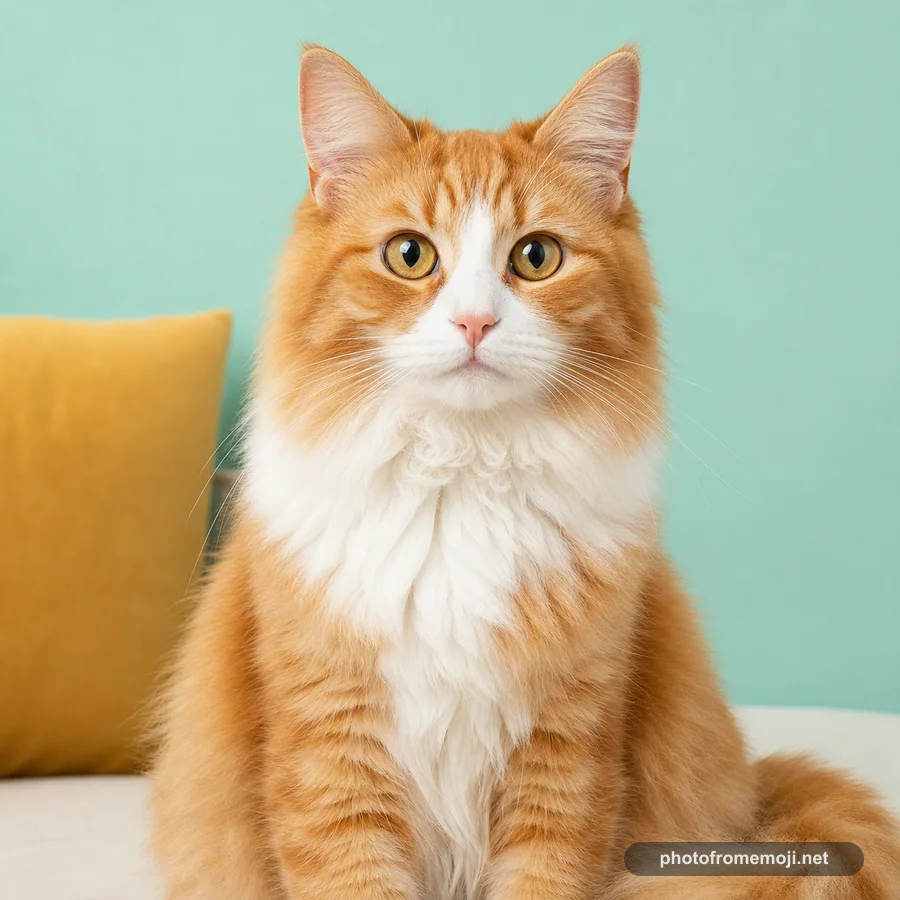
A cat photo turned into an emoji mosaic
Pet photo
Emoji pet portrait
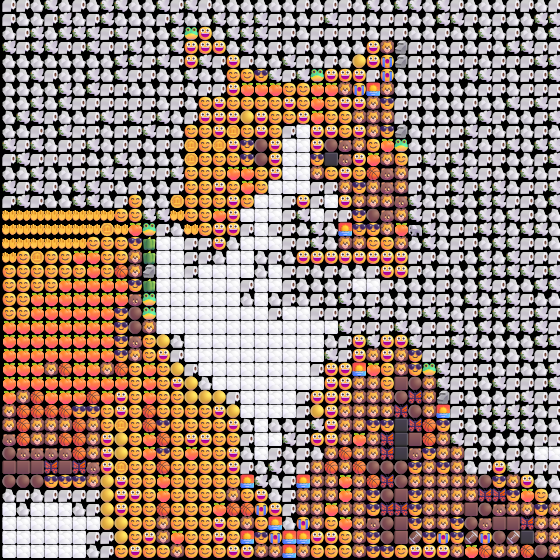
Center detail · 2.5×
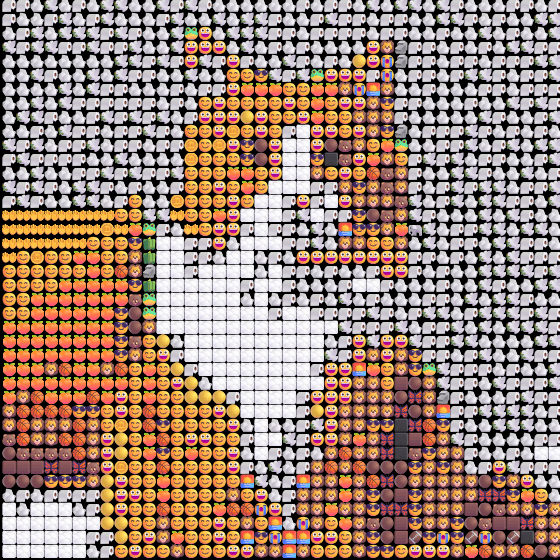
The ears, bright eyes, and orange fur create recognizable shapes. Fine whiskers and individual hairs are harder to retain. Try the cat source and compare the whole picture before inspecting the individual emoji tiles.
Make your pet portrait
- Choose a JPG, PNG, or WebP under 10 MB, or use Try a sample in the tool above.
- Start with High detail (recommended) and Grid. Use Quick preview for a faster first comparison.
- Check the eyes, ear edges, and coat markings. Change one setting, then wait for the new result before comparing.
- Save with Download PNG. On a phone, look in browser downloads or Files if the image does not appear in your photo library.
The sample picture was exported at Quick preview settings 4/14. High detail starts at 2/7 and uses a denser set of tiles. Increasing only output emoji size makes a larger file without bringing back missing fur detail.
Work with your pet's coat and background
Dark fur: start with a source that has light on the face. A silhouette against a bright window gives the generator little eye or muzzle detail to preserve. Compare the shadow setting while keeping the preview size fixed.
White or pale fur: use a source with a visible outline against the background. Pale fur on a white bed can merge into one area even at higher detail.
Spots and stripes: keep the head or body large in the crop so markings span several tiles. Texture can soften edges; compare Grid when markings matter.
More than one pet: try the full photo, then compare a crop of each subject. A separate close-up usually gives each face more room in a small image.
See the full photo-to-emoji tutorial for settings and download examples. For a person's photo, use the portrait maker; for style choices, open the emoji art generator. More sources and results are in the gallery.
Frequently asked questions
Can I use a dog photo as well as a cat photo?
Yes. The converter accepts pet photographs in JPG, PNG, or WebP format under 10 MB. The worked example on this page is a cat; your dog's colors, pose, and background will give a different result.
Why does dark fur become one large patch?
Low-contrast fur can merge when the image is sampled. Try an original with more light on the face, compare High detail in Grid mode, and keep the eyes large enough in the crop.
Will the result keep every whisker?
No. Fine whiskers, individual hairs, and small tags can disappear between tiles. Judge the eyes, ear shape, and main fur markings rather than expecting a hair-by-hair copy.
Does it turn my pet into a custom keyboard emoji?
The result is a PNG image made from emoji tiles. It does not add a character to your keyboard or create a ready-to-install sticker pack.
Can I convert a photo of two pets?
Yes, but each pet gets less space in the mosaic. For a small profile image, try a separate close-up of each pet and compare the results.
Do I need an account or upload my pet photo to a server?
No account is needed for generation or PNG download. Your selected photo is processed in your browser. Trying a public example downloads that source image to your device.