
Emoji Art Generator: Make Art From a Photo
Turn a photo into emoji art with Grid, Texture, or Chart. Compare a real example, adjust the style in your browser, and download your artwork as a PNG.
Last updated: 2026-10-04
Sample
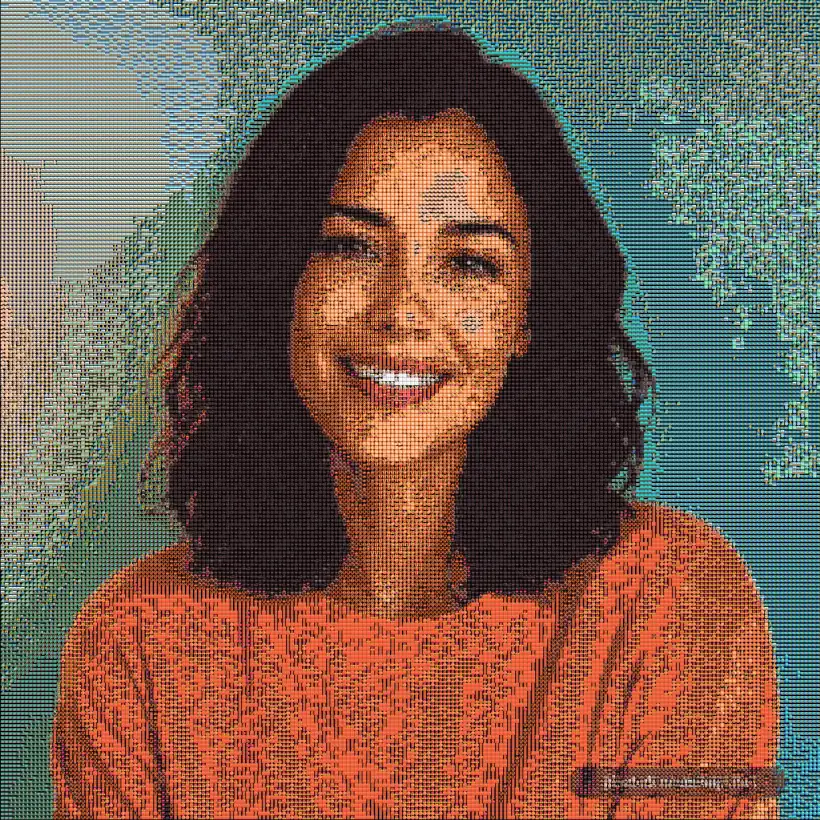
Choose the look of your artwork
A picture made from emoji has two scales: the subject you recognize from a distance and the individual symbols you see close up. Start with the tool above, then compare the result at the size where you plan to share it.
- Grid keeps the symbols in a regular pattern. Start here for recognizable faces and objects.
- Texture overlaps and offsets symbols for a denser surface. Compare edges and dark areas before choosing it for a small image.
- Chart draws colored cells behind the symbols. Try it when you want broad color blocks to stand out.
The PNG is a finished picture you can attach to a post or message. It does not behave like typed emoji text.
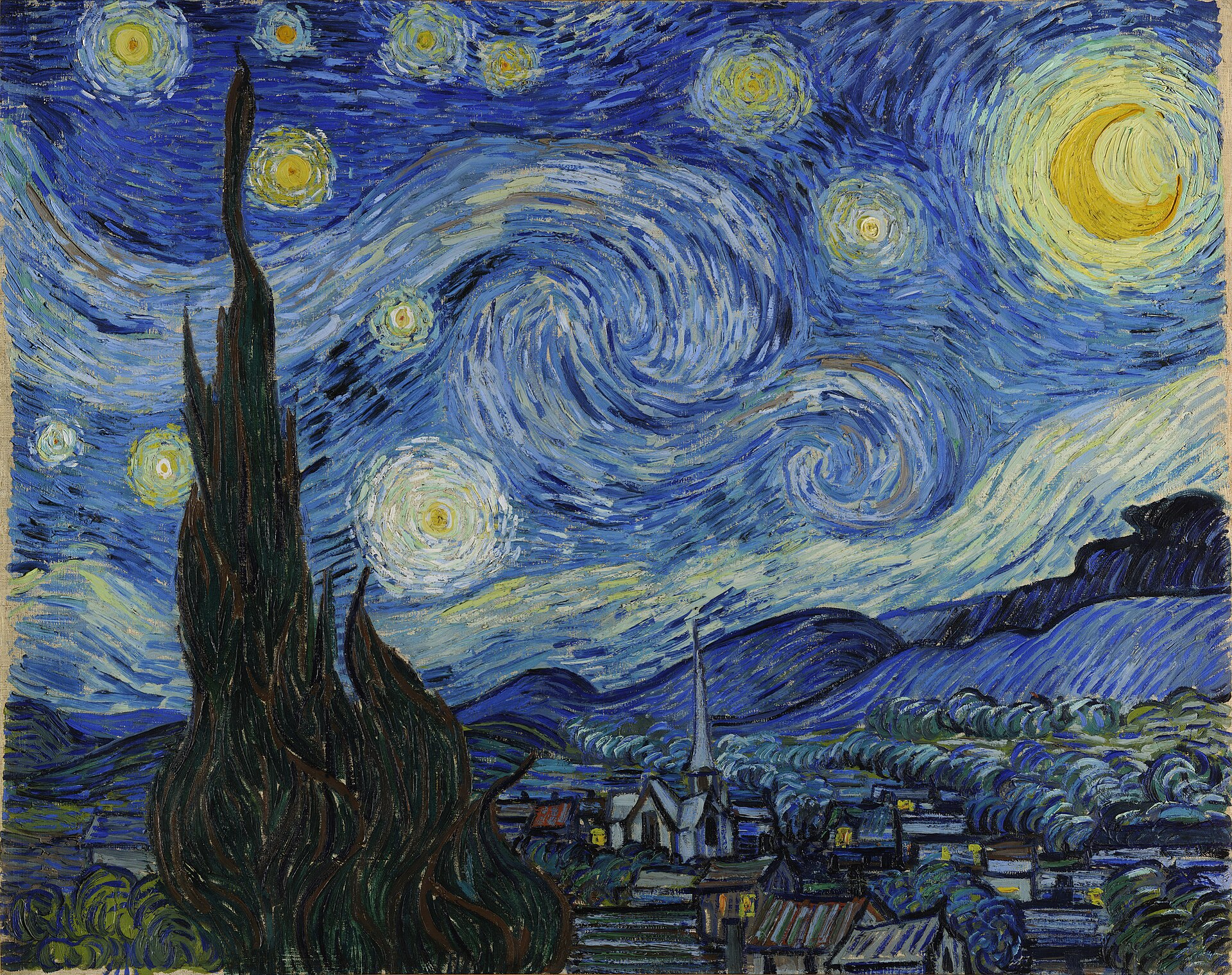
See how a painting becomes emoji art
Original
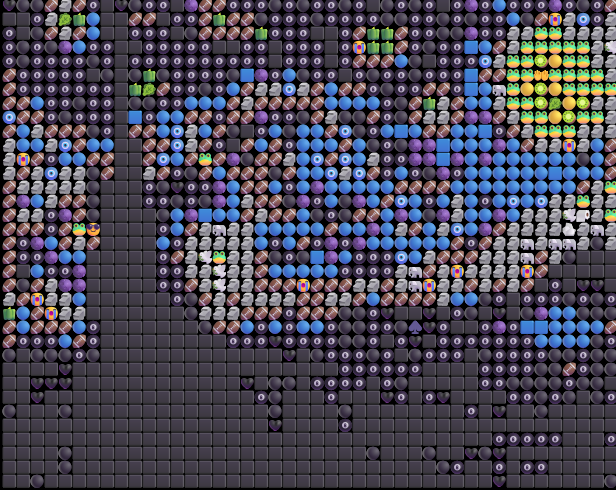
Emoji artwork
Center detail · 2.5×
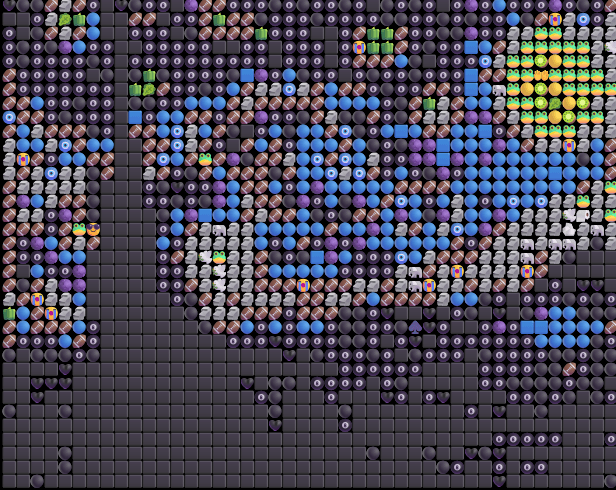
The blue sky and yellow lights help this painting stay recognizable. Small brushstrokes merge into larger shapes. Look at the full image first, then the center detail; a recognizable picture and clearly visible emojis are different things to judge. Try this painting or browse more finished examples.
Make your first artwork
- Choose a JPG, PNG, or WebP under 10 MB in the workspace above. The picture begins generating after it loads.
- Start with High detail (recommended) and Grid. Use Quick preview when you want to compare ideas before waiting for more detail.
- Change one control at a time. Keep the preview at the same size while comparing Grid, Texture, and Chart.
- Wait until Download PNG is available, then save the result. On a phone, check your browser downloads or Files app.
For a square social image, crop the original in your photo editor before uploading. Keep the main subject away from the corners if the destination shows circular profile pictures. Use the portrait maker for face-specific advice or pet photo to emoji for fur and eye detail.
When the result feels too busy
A simpler source often helps more than a larger export. Crop away distracting background objects, try a brighter original, and keep only one main subject. Increasing output emoji size makes bigger symbols; it does not create more sampled facial detail.
The photo-to-emoji walkthrough includes a same-photo size comparison. For sampling and output controls, see the emoji mosaic settings guide. For transparent files, see the image converter.
Choose your next step
| What you want to make | Where to start |
|---|---|
| A JPG, PNG, or WebP picture rebuilt as emoji | Image to emoji converter |
| An emoji image from a personal photo | Photo to emoji |
| A recognizable face or small avatar | Emoji portrait maker |
| A pet picture with clear eyes and fur colors | Pet photo to emoji |
| A mosaic with different sampling and export sizes | Emoji mosaic settings |
All of these workflows produce a PNG from a source image. To compare an actual output before choosing your photo, browse the art gallery.
Frequently asked questions
If you want a single emoji from a photo instead of a tiled artwork, use the photo crop tool. To decorate the original with stickers, open the photo emoji editor. The emoji to image converter exports a supported emoji as a standalone PNG.
For an orderly grid effect, explore emoji pixel art. Follow a creative exercise to choose your crop and final size, or start with three annotated examples.
Can I copy the artwork as emoji text?
The output is a PNG image. Download it and attach it to a message or post; the tool does not export rows of copyable emoji characters.
Can I generate art from a text prompt?
Start with a JPG, PNG, or WebP image under 10 MB. This tool rebuilds an existing picture from emoji tiles; it does not create scenes from prompts.
Why do the emojis look different on another device?
The generator uses the emoji fonts available in your browser and operating system, so a new rendering can differ across devices. A downloaded PNG keeps the pixels already rendered.
Can I make emoji pixel art?
Grid produces a regular arrangement of emoji tiles, while Chart emphasizes colored cells. Neither mode is a manual pixel editor or a way to draw one pixel at a time.
Does changing emoji size add detail?
Output emoji size changes the size of the drawn tiles and the export. It cannot recover details missing from the sampled picture. Compare analysis-window settings at the same display size instead.
Is it free, and does my photo leave my device?
Generation and PNG download are free without an account. Your selected photo is processed locally in the browser; public sample images are fetched when you choose them.