
Emoji Pixel Art: Make a Grid Image From a Photo
Explore photo-based emoji pixel art with a real grid example. Compare tile detail, choose a simpler source, and save a PNG from the browser generator.
Last updated: 2026-09-11
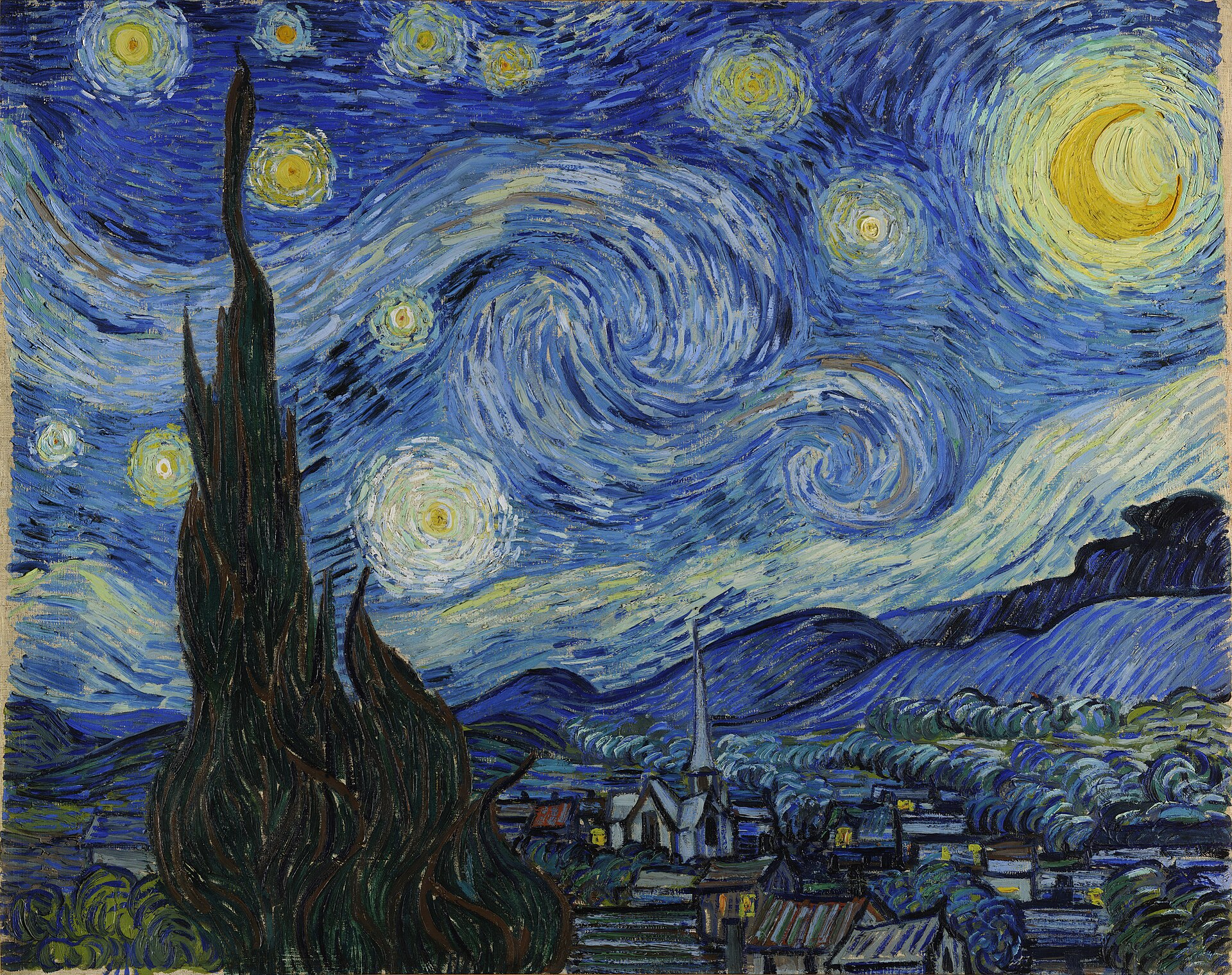
Make a picture that reads as a scene from a distance and as a grid of emoji up close. Open the emoji art generator with your own photo, or try the painting below. The finished artwork is a PNG.
Original
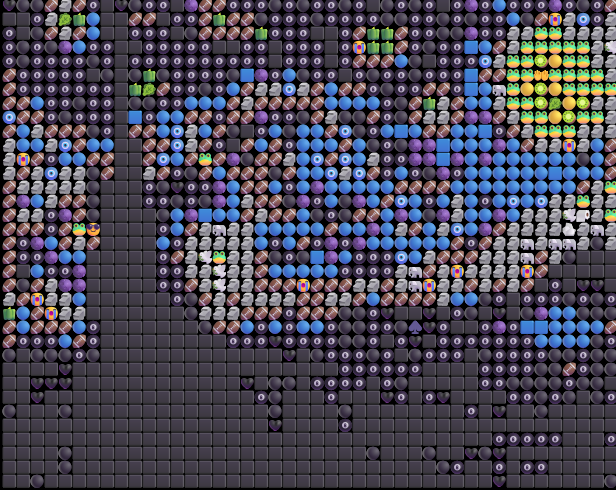
Grid result
Center detail, 2.5x
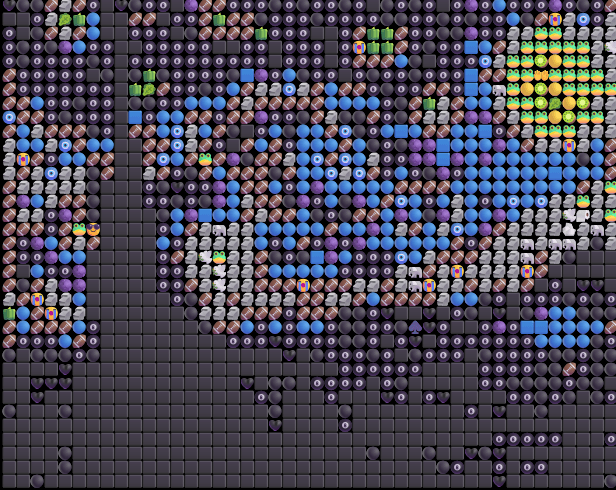
A tile is more than one pixel
In a photo mosaic, each tile contains an entire emoji with its own shape and colors. A source pixel is a single color sample; a tile can cover many pixels in the downloaded picture. Enlarging the tiles makes those symbols easier to inspect, but does not make the original scene more detailed.
This differs from drawing a small sprite one square at a time or arranging colored square characters in a message. Start with the photo method when you want a recognizable scene made from many symbols. For a hand-drawn icon with an exact grid, a pixel editor gives you the individual-cell control needed for that task.
Choose between visible symbols and color blocks
- Grid places symbols in regular rows. Start here when you want to inspect individual emoji and keep the main outline readable.
- Chart places colored cells behind the symbols. Compare it with Grid when large patches of color matter more than the gaps between emoji.
- Texture overlaps and offsets symbols. Its denser surface is useful to explore, but less suited to an orderly pixel-grid appearance.
The example above uses Grid only. To compare modes, load the painting, save the first PNG, then switch Display mode and wait for the new result. Keep the same displayed width for both versions.
Try one controlled grid experiment
- Load The Starry Night. This painting sample starts with Quick preview, analysis window 4 and output emoji size 14.
- Check whether the yellow lights remain separate from the blue sky at the size you intend to share.
- Change Analysis window one step at a time. A larger window can simplify small features; a smaller window can preserve more until processing limits are reached.
- Keep Output emoji size fixed while comparing. Then adjust it only if you need a different exported size.
- Download both versions. Open them at the same width and choose the one with the more readable shapes.
For your own image, start with one object, a simple background, and a few distinct color areas. Tiny text, hair, and thin outlines can merge into the grid. Crop or simplify a copy of the source outside the tool before adjusting several controls.
Share the grid as an image
Use Download PNG when generation finishes. A screenshot may include the interface or reduce the visible resolution; the PNG contains the generated artwork. Messaging apps can still resize attachments, so inspect their preview before sending.
For a creative starting point, see three emoji art examples. For composition decisions, follow how to make emoji art. The mosaic settings guide covers background and matching controls.
Common questions
Can I paint or replace individual cells?
No. This generator chooses emoji tiles from the colors of an uploaded image. It does not include a pencil, a cell editor, or a way to choose every symbol manually.
Can I choose an exact 16 by 16 grid?
There is no exact row-and-column setting. Sampling depends on the source image, analysis window, and processing limits. Use a dedicated pixel editor if you need a fixed sprite grid.
Can I paste the result as colored emoji squares?
The result is a PNG image, not rows of emoji text. Attach the downloaded picture to your message; it will not become editable characters.
Will bigger output tiles create more detail?
No. Output emoji size makes each drawn tile larger and changes the exported dimensions. It does not add sampled cells or recover missing source detail.
Painting source: Vincent van Gogh, The Starry Night (1889), from the site's existing Wikimedia Commons reproduction. The shown result is a recorded desktop Chrome export; fresh renderings can differ with the device's emoji fonts.