
How to Turn a Photo into Emoji Art with Photo From Emoji
Follow a photo-to-PNG walkthrough with portrait, cat and Starry Night examples, actual settings, and advice for dark or unclear results.
Last updated: 2026-09-11
Written by the Photo From Emoji developers. We made the results below with our browser tool, using the settings shown. The portrait and cat inputs are our AI-created demonstration images, not customer photographs. Their emoji results are actual tool outputs.
To make your first picture, open the photo converter, choose a clear image, wait for generation, and download the PNG. The examples below let you compare the original, finished picture, and enlarged emoji detail before trying your own.
Convert a photo to emoji: choose your subject
Use the emoji portrait maker for selfies and small profile pictures, or pet photo to emoji for eyes, ears, and fur. To compare Grid, Texture, and Chart before choosing a subject, start with the emoji art generator. The steps below work with the same browser-based generator.
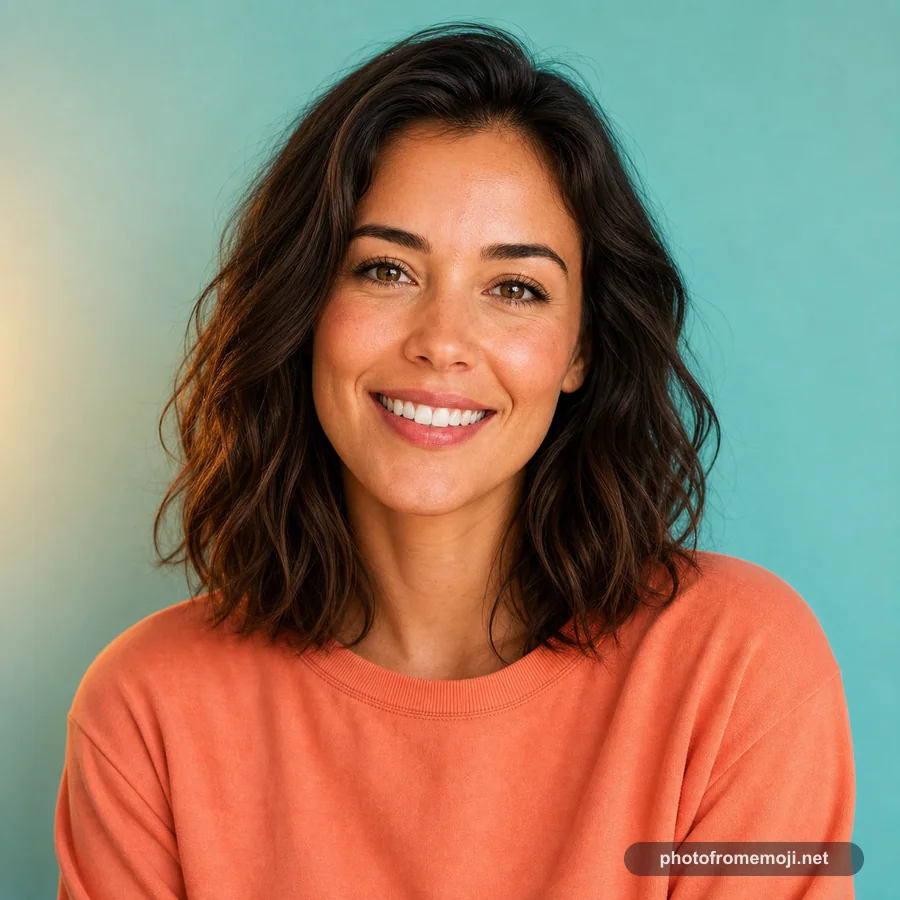
A good first image has one clear subject, enough light, and a background that does not compete with the face or outline. Emoji art rebuilds the picture with small colored symbols. It preserves broad color areas better than tiny writing, individual hairs, or distant faces. A portrait, a close-up pet picture, or a painting with strong color contrasts makes the effect easier to judge.
Original
Emoji result
Center detail · 2.5×
For your own picture, crop it in your phone's photo editor before uploading if the subject is small. Keep a copy of the original. The tool does not need a large empty border, and a tight crop gives the subject more of the available mosaic cells. Use an image you have permission to process and share.
Select a picture and let the preview finish
- Open the homepage generator. This walkthrough uses the homepage's compact controls; other tool pages may start with different defaults.
- Choose a JPG, PNG, or WebP under 10 MB with the photo picker. Generation starts after the image loads. You can also try a homepage example before choosing your own image.
- Wait for the finished preview and the enabled Download PNG button. If you change a control, allow the next preview to finish before judging it.
- Start with High detail (recommended) or Restore recommended settings: Grid, Analysis window 2, Output emoji size 7. To reproduce the quick previews below, restore the recommended settings, then select Quick preview (Analysis window 4, Output emoji size 14).
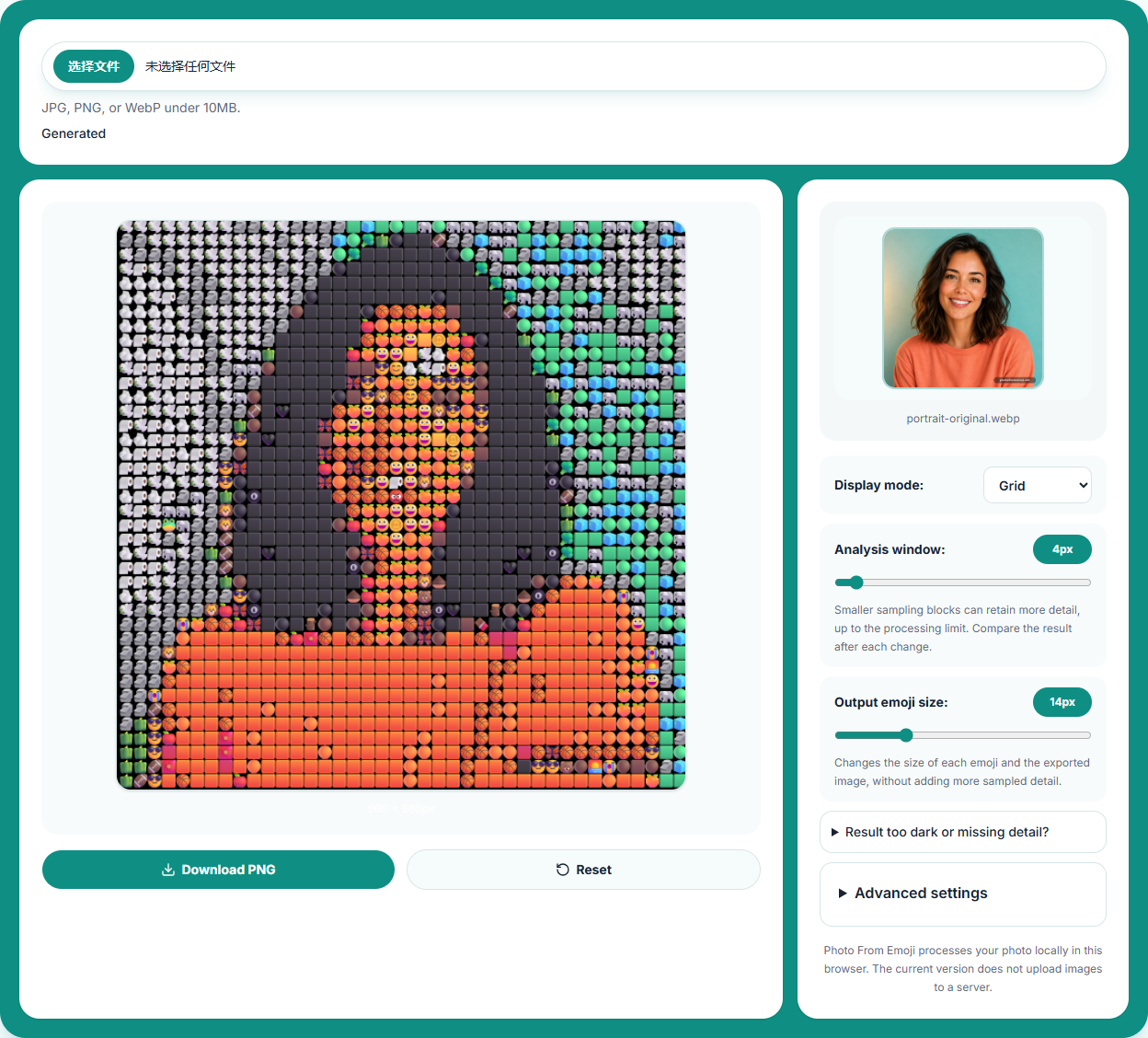
Our generator processes images locally in your browser. Selecting a photo does not upload its image data to our server. Public example images are fetched when used. If you already have a picture open, read the replacement prompt before switching to a homepage example; canceling keeps your current work.
Separate detail from exported size
Analysis window affects how the source is sampled. A smaller value can retain more detail until the processing limit is reached. It is not a promise that every smaller setting creates a sharper image. Look at the subject at the same display size after each change.
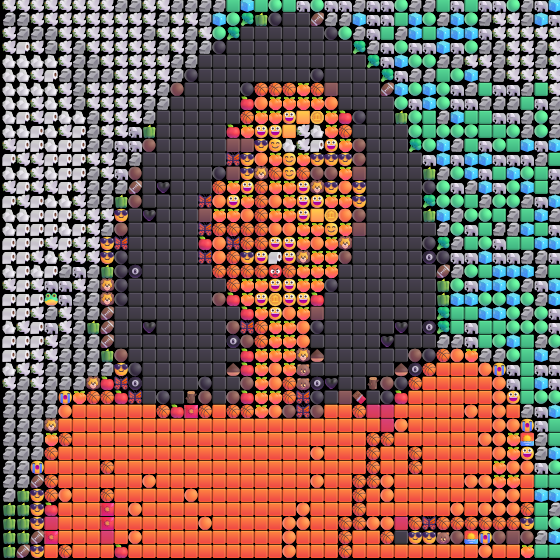
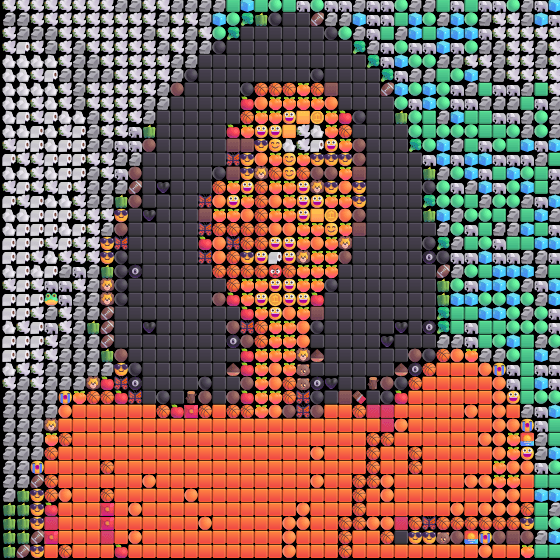
Output emoji size changes the size of the drawn symbols and the exported canvas. It does not create additional sampled detail. In our portrait comparison, changing only this control from 14 to 28 changed the downloaded PNG from 560 × 560 to 1120 × 1120. The larger file can be useful for a larger layout, but it does not recover hair or facial features absent from the smaller mosaic.
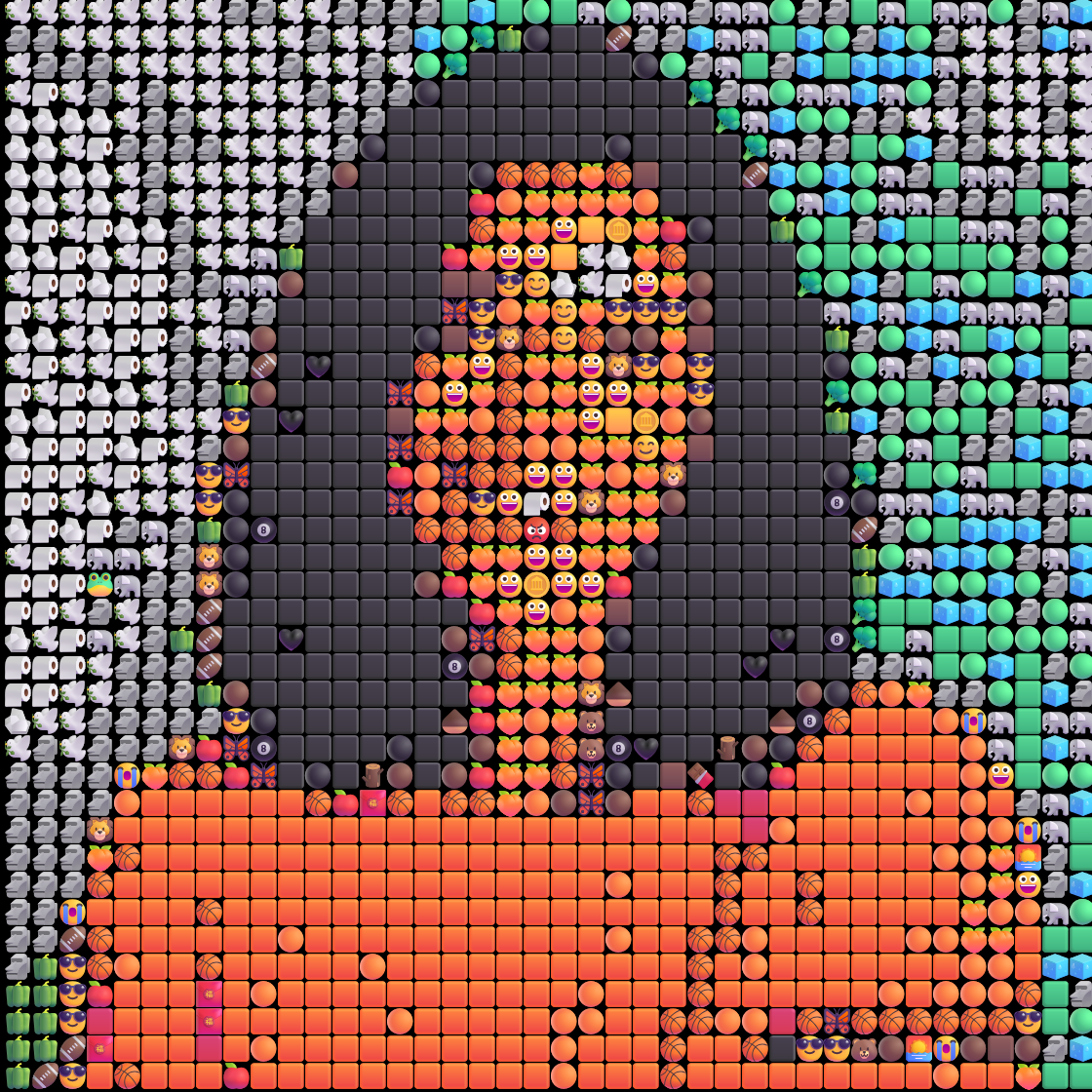
Both images are displayed at the same width here. Open either image to inspect the original file. For this run, match tolerance stayed at 5, allowed empty space at 54%, background enabled with black, and Hide black disabled. Change one setting at a time so that you know which adjustment caused the difference.
Three subjects, the same starting settings
The portrait above keeps the orange shirt and dark hair distinct, while small facial details become symbols. Judge the complete silhouette first. A face that looks interesting when enlarged may be harder to recognize as a small profile picture, so also preview it at the size you intend to use.
Cat: watch the face and chest
Original
Emoji result
Center detail · 2.5×
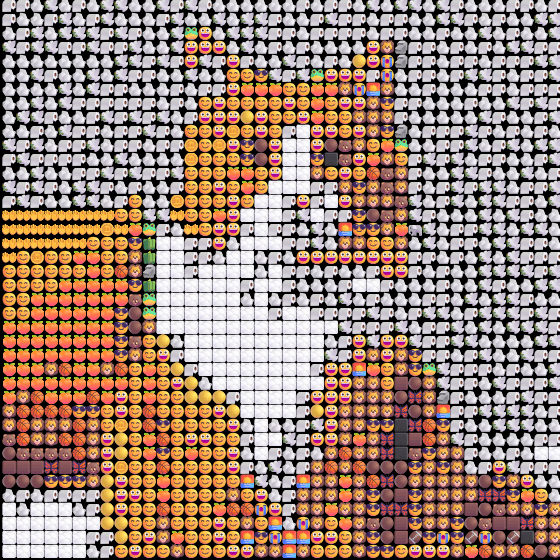
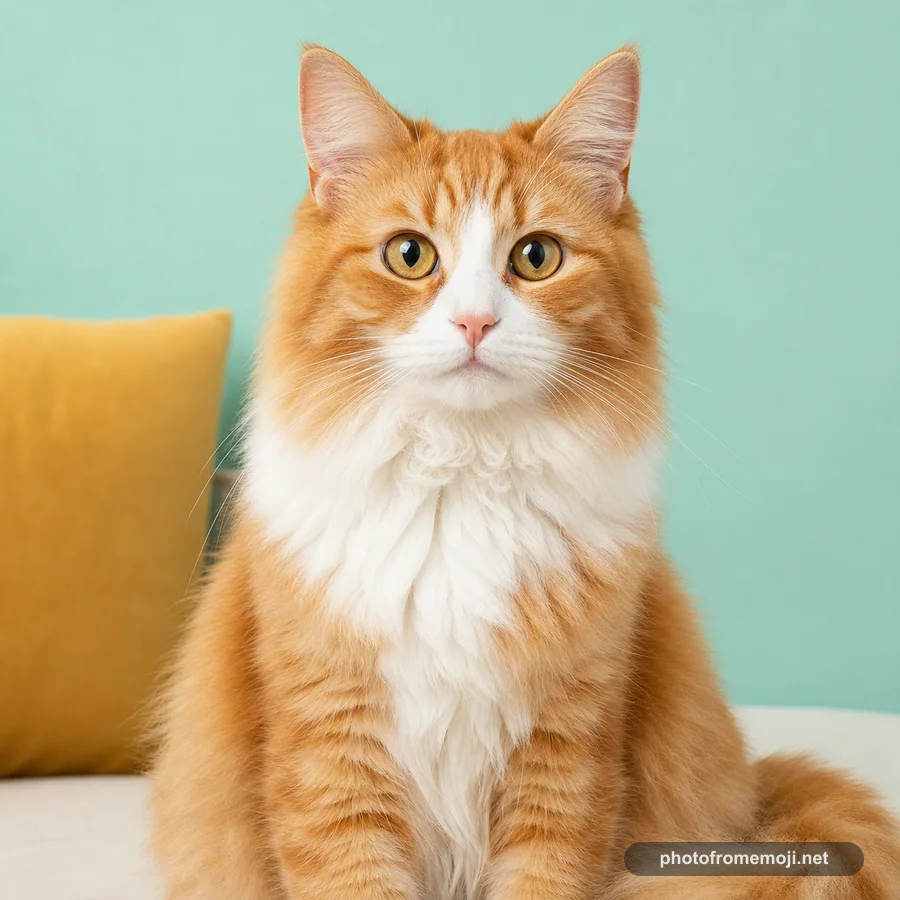
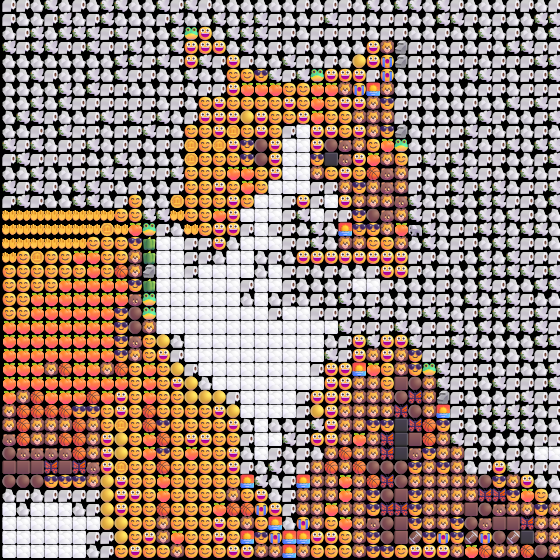
The cat's orange and white areas remain readable, but fine whiskers do not survive as photographic lines. If your pet disappears into a busy background, try a closer crop before changing several settings. Check that both ears and the eyes remain inside the crop. A brighter source may help a dark face, but avoid washing out the light fur.
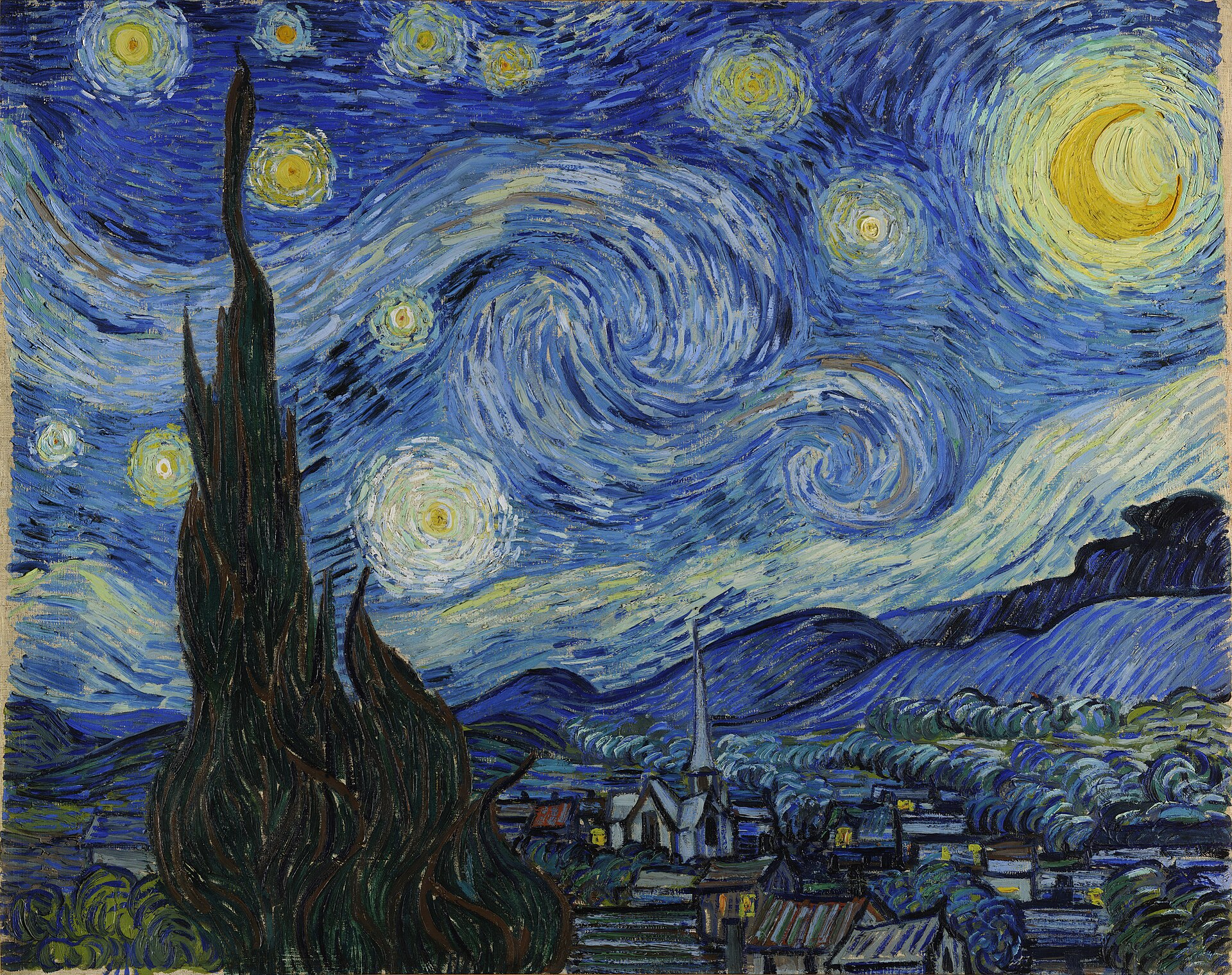
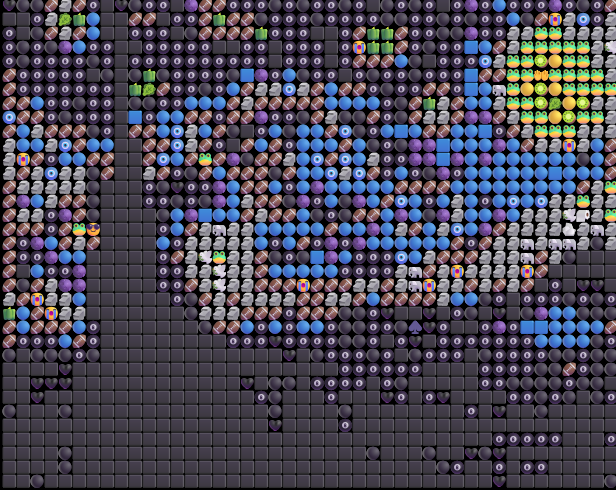
Painting: compare the large color shapes
Original
Emoji result
Center detail · 2.5×
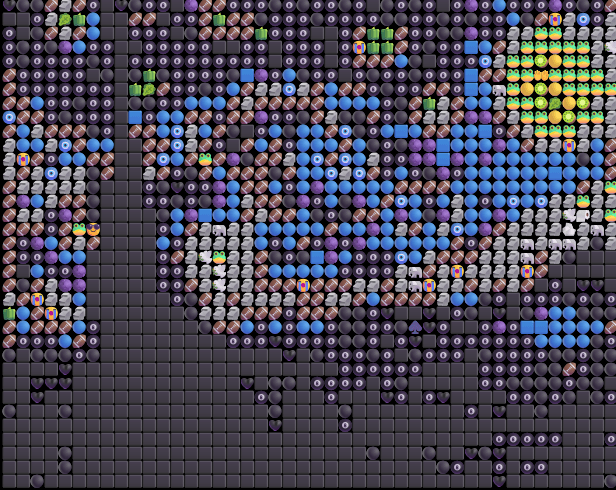
The Starry Night makes a useful test of blue areas, yellow lights, and dark shapes. A mosaic is an interpretation, not a reproduction of every brushstroke. Compare the full image from a little farther away, then inspect the symbols up close. Browse the art gallery for more subjects, or open the painting examples to experiment.
If the result is too dark or unclear
First compare your original at a small size. If its subject is already difficult to see, adjust the crop or lighting outside the tool and try again. For a result with conspicuous dark gaps, check the background and matching controls under Advanced settings. Keep the first successful PNG so you can compare experiments rather than relying on memory.
Do not use output size as a sharpening control. Try one sampling change, wait for generation, and compare the outline and important features. If a large image feels slow, resize a copy before uploading. The help beside the controls explains the settings without requiring you to leave the tool.
Download and share your result
Press Download PNG after generation finishes, then open the saved file to check it. On a phone, use your browser's downloads or Files app if the image is not immediately visible in Photos. Keep the PNG before resetting or closing the page.
To post your artwork, attach that PNG in the app where you want to share it. Share image lets you preview the finished picture or a before-and-after comparison before opening your device's sharing options. If file sharing is unavailable, download the PNG and attach it yourself. Website link-sharing buttons share the site, not your locally generated picture. Check the destination app's preview because resizing can make individual emoji less visible.
FAQ
For decisions about composition and sharing size, follow how to make emoji art. Practice with three annotated examples, or explore the difference between symbols and cells in emoji pixel art.
Will a larger PNG make my photo more detailed?
Not by itself. Output emoji size enlarges the drawn tiles. To change sampled detail, compare analysis-window settings or restore High detail while keeping the displayed size the same.
Why does my face look unclear?
Try a closer crop, brighter lighting, and a simpler background. Small faces and fine text can disappear when a photo is rebuilt from emoji.
Can I copy the result as emoji text?
The result is a PNG image, not a block of copyable emoji text. Download the image and attach it to your post or message.
Where is my downloaded picture on a phone?
Check your browser downloads or the Files app. It may not appear in Photos automatically.
Image credits and reproduction notes
Portrait and cat: project-created AI demonstration inputs, with the existing sample branding. No additional watermark was added to the results in this tutorial. Painting: Vincent van Gogh, The Starry Night (1889), using our existing sample derived from the Wikimedia Commons reproduction and its rights information.
Results were generated on September 10, 2026 in desktop Chrome on Windows. Emoji appearance may differ across operating systems and browsers. The dimensions above describe these specific runs, not every input image.