
Emoji Portrait Maker: Turn a Selfie Into Art
Make an emoji portrait from a selfie or headshot. Compare a real example, keep facial features readable, and download a PNG for your profile or a post.
Last updated: 2026-09-11
Sample
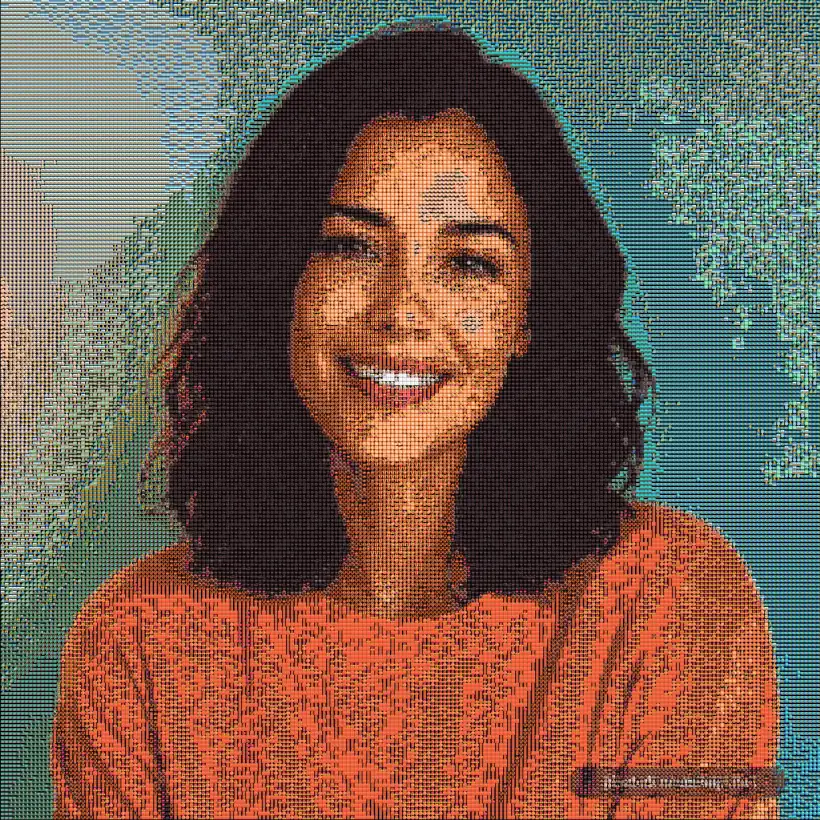
Start with a face you can recognize at a glance
Choose one person, with the face large enough to see both eyes clearly. Even daylight and a quiet background make a useful starting point. A distant face in a group photograph can lose its expression when the picture is rebuilt from emoji.
Crop in your phone's photo editor before uploading. Leave space around hair and the chin, especially if you plan to use a circular profile picture. The generator keeps your image's proportions; it does not automatically crop a face or remove the background.
Compare a portrait and its emoji tiles
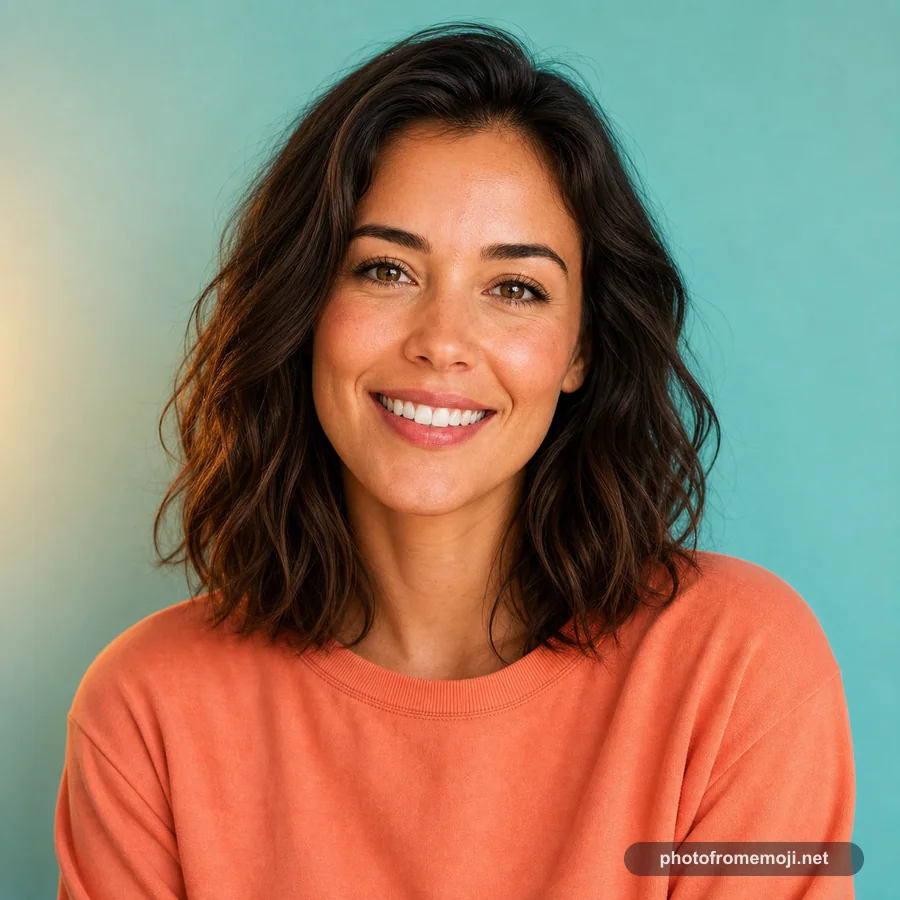
Portrait source
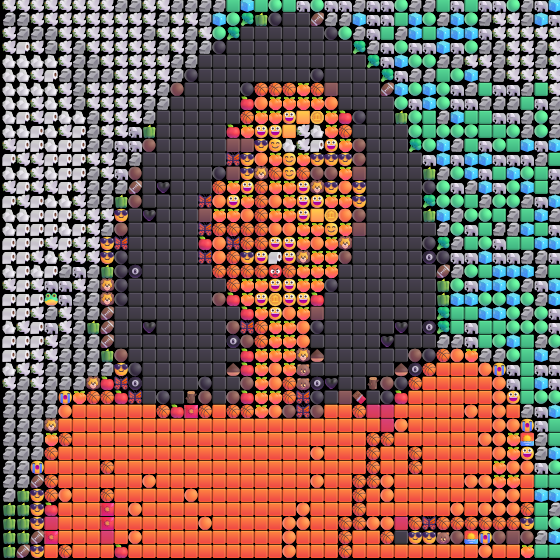
Emoji portrait
Face detail · 2.5×
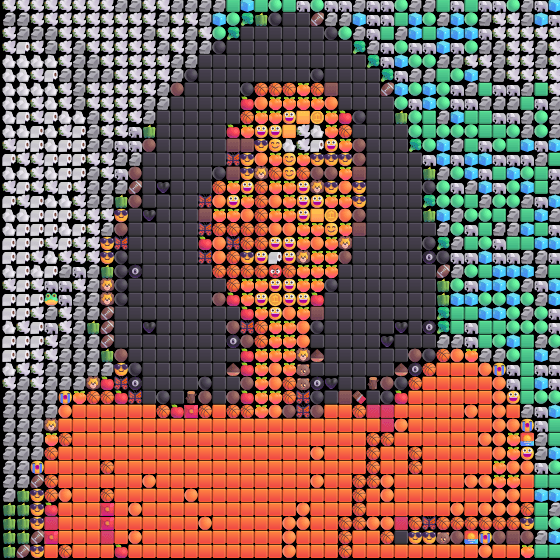
The orange shirt and dark hair hold the shape together even where small facial details soften. The enlarged view reveals the individual tiles, but it is the small full portrait that tells you whether the face still reads. Load this portrait to try the same source with your own settings.
Make and save your portrait
- Upload your cropped JPG, PNG, or WebP under 10 MB in the workspace above.
- Start with High detail (recommended) and Grid. Wait for the preview to finish.
- Check the eyes, mouth, hairline, and outline. Compare Quick preview if generation is slow, then return to High detail for a denser result.
- Download the PNG and view it at the intended profile-picture size. If it is unclear, try a tighter source crop before enlarging the export.
To reproduce the pictured quick example, use analysis window 4 and output emoji size 14 in Quick preview. The workspace starts at High detail with 2 and 7, so its initial result can look different. Emoji fonts can also vary by device.
Fix the parts that disappear
- Glasses blend into hair: choose a source where frames contrast with the face, and keep the face larger in the crop.
- One side is too dark: use a better-lit source or compare the shadow setting. Raising export size cannot brighten missing source detail.
- The background dominates: crop closer in your photo editor; the mosaic does not identify and isolate people.
- The avatar looks busy: inspect Grid at the final small size and keep a copy of the original crop to try again.
For an illustrated walkthrough, learn how to convert a photo to emoji. For other subjects and styles, see the emoji art generator, pet photo tool, and example gallery.
Frequently asked questions
Will this make a Memoji or a cartoon avatar?
It makes a portrait assembled from many emoji tiles. It does not create a Memoji, a face-tracked character, or a single custom emoji.
Can I use the portrait as a profile picture?
Yes, you can use the downloaded PNG where image uploads are accepted. Check it at the destination's small display size first, because tiny facial features and individual emoji may disappear.
Does the tool crop my selfie or remove the background?
No. Crop the photo or remove its background in another editor before uploading. Background controls affect the mosaic canvas; they do not automatically cut a person out of a photo.
Why are my eyes or glasses hard to see?
Small features may occupy too few mosaic cells. Try a closer crop with even lighting and start with High detail in Grid mode. A larger output size alone does not restore those features.
Can I use a group photo?
The tool can process it, but each face gets fewer tiles. Crop one person at a time for portraits that are easier to recognize.
Are portraits private and free to download?
The tool processes your selected photo in your browser and offers free PNG downloads without signing up. Sharing a downloaded image or a comparison containing the original is a separate action you choose.